 Milometry
Close the year with the Year end screen
Sort the stragglers, check for gaps, read your mileage figure, export the claim PDF and CSV, and mark the year as submitted.
Last reviewed 27 September 2026. Figures for tax year 2026-27.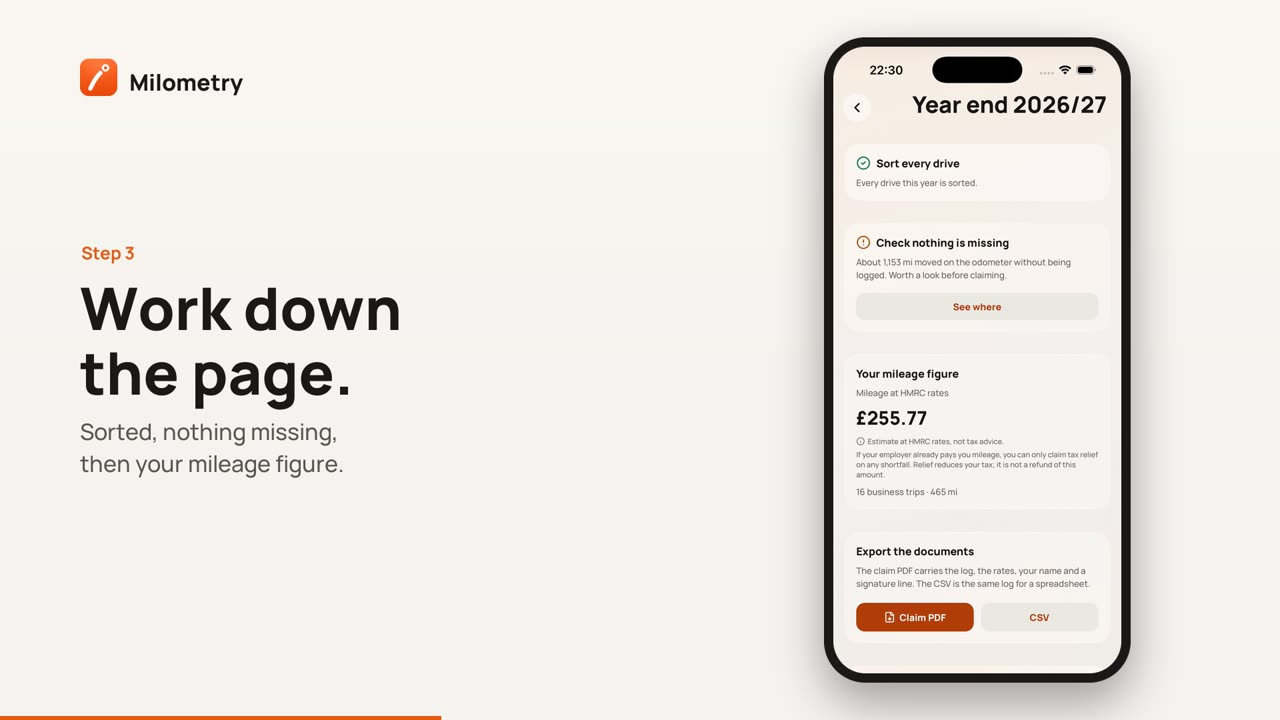
Chapters
Transcript
General information, not advice. Written as general information and correct as far as we know on 27 September 2026. Tax rules change, and how they apply depends on your own circumstances. This is not tax, legal or financial advice: check with an accountant, a tax adviser or HMRC before you rely on it.
Everything a claim needs already lives somewhere in Milometry: the deck, the gap checks, the figure, the exports. The Year end screen puts them on one page in the right order, so you work down it and finish with the documents in hand.
It covers the tax year you are in now, which in the UK runs from 6 April to 5 April. For a year that has already ended, see step 6.
1. Open Year end
- Open Insights and tap Statements.
- Tap the Tax years tab.
- Tap Year-end review.
The screen is titled with the year, for example Year end 2026/27. Each check shows a tick when it is done, or a warning sign when it needs you.
2. Sort every drive
If anything is waiting, this card says how many, for example "3 drives are still unsorted. Unsorted drives are not in the claim." Tap Sort them now to go to the Classify tab, sort them, then come back. See sorting trips.
When it is done, the card reads "Every drive this year is sorted."
3. Check nothing is missing
This compares your odometer readings from fill-ups with your log. If the car moved further than the log says, the card shows roughly how far, for example "About 120 mi moved on the odometer without being logged." Tap See where to open Unlogged mileage on Insights.
The check needs fill-ups with odometer readings. Without them there is nothing to compare, so a tick here does not prove the log is complete. Settings → Missed drives also lists journeys the app did not see. See fixing missed drives.
4. Read your mileage figure
The Your mileage figure card shows Mileage at HMRC rates, with the number of business trips and the business distance underneath. Ordinary commuting is left out (see Home, Workplace and your saved places). In versions before 1.1.0, this card is called The claim.
This is the approved amount at 55p a mile for the first 10,000 business miles and 25p after, an estimate of what the rules allow rather than money you will receive:
- Employees. If your employer pays less than the approved rate, you can claim tax relief on the difference. Enter their rate in Settings → Mileage scheme, under What your employer pays, and this card shows the amount relief is usually claimable on. If they pay more, it warns that the extra is taxable.
- Self-employed. The figure is what simplified expenses would allow as a deduction from your profits for that vehicle.
5. Export the documents
First, put your name on the documents: Settings → Mileage scheme, under Name on documents. It is optional and stays on your phone.
Then, on Year end, tap:
- Claim PDF: titled "Business mileage claim" with the year. It carries your name, your vehicles and plates, the period, the rates, a table of every business journey (date, journey, purpose, distance, rate and figure), the totals, a declaration and lines to sign and date.
- CSV: the same log as a spreadsheet.
Each opens the share sheet, so you can email it, save it to Files or send it to your accountant.
6. Seal the year
Once the figures have gone in, tap Mark as submitted. From then on, changing the sorting, trimming, splitting, merging or deleting a trip in that year first asks This year was marked as submitted, so a stray edit cannot quietly change what you claimed. Reopen the year undoes it.
The padlock beside each year on Statements → Tax years does the same, and a submitted year is labelled submitted.
For a year that has already ended
Year end shows the current year. For the one before:
- Claim PDF or CSV: go to Settings → Export & sync → Export, choose Journeys, then Claim document or Spreadsheet, pick the year under Which period, and tap Export.
- Statement: on Statements → Tax years, tap the year.
- Seal it: tap the padlock beside the year on Tax years.
What an accountant needs
- The claim PDF or the CSV for the right tax year.
- Whether you are employed or self-employed, and if employed, what your employer paid per mile.
- The reason for each journey. HMRC's guidance for employees says a mileage log sent with a claim needs the reason for every journey and the postcode at the start and end. Milometry's documents show your notes and groups in the Purpose column, and place names rather than postcodes, so fill in your notes and ask your accountant whether they need postcodes added.
- Receipts for any parking or tolls you attached. See receipts, parking and tolls.
The online Self Assessment deadline is usually 31 January after the tax year ends. Employees can claim relief for the current tax year and the 4 before it. Keep the records afterwards: if you file Self Assessment on time as an employee, at least 22 months after the end of the tax year; if you are self-employed, at least 5 years after the 31 January deadline. Your full backup keeps the whole history. See backups and auto-export.
If something is not right
- The export buttons are greyed out. There are no business trips in the year yet, or all of them are commuting.
- The figure looks too high. Check that commuting is tagged, and that no personal trips were swiped as business. Trips with the Business filter lists them.
- The name is missing from the PDF. Add it under Name on documents and export again.
Sources
- Travel, mileage and fuel rates and allowances (HMRC)
- Claim tax relief for your job expenses: vehicles you use for work (HMRC)
- Expenses and benefits: business travel mileage for employees' own vehicles, rules for tax (HMRC)
- Simplified expenses if you're self-employed: vehicles (HMRC)
- Self Assessment tax returns: deadlines (HMRC)
- Keeping your pay and tax records: how long to keep your records (HMRC)
- Business records if you're self-employed: how long to keep your records (HMRC)

