 Milometry
Sort a week of driving in under a minute
Swipe drives into business or personal, let tagged places do the sorting for you, and clear a backlog in one go.
General information, not advice. Written as general information on 27 September 2026. Details change, so check the official source or a qualified professional before you rely on it. This is not legal, tax or financial advice.
Sort once you have parked, not at the lights. Nothing on this page needs doing on the road.
Recording drives is the easy half. The half that makes people give up on a mileage log is deciding, weeks later, which drives were work. Milometry is built so that takes seconds. By the end of this you will have cleared your waiting trips, set up the shortcut that sorts future ones, and know how to change an answer later.
A trip only counts towards a claim once it is sorted as business. An unsorted trip is in no total.
1. Open the Classify tab
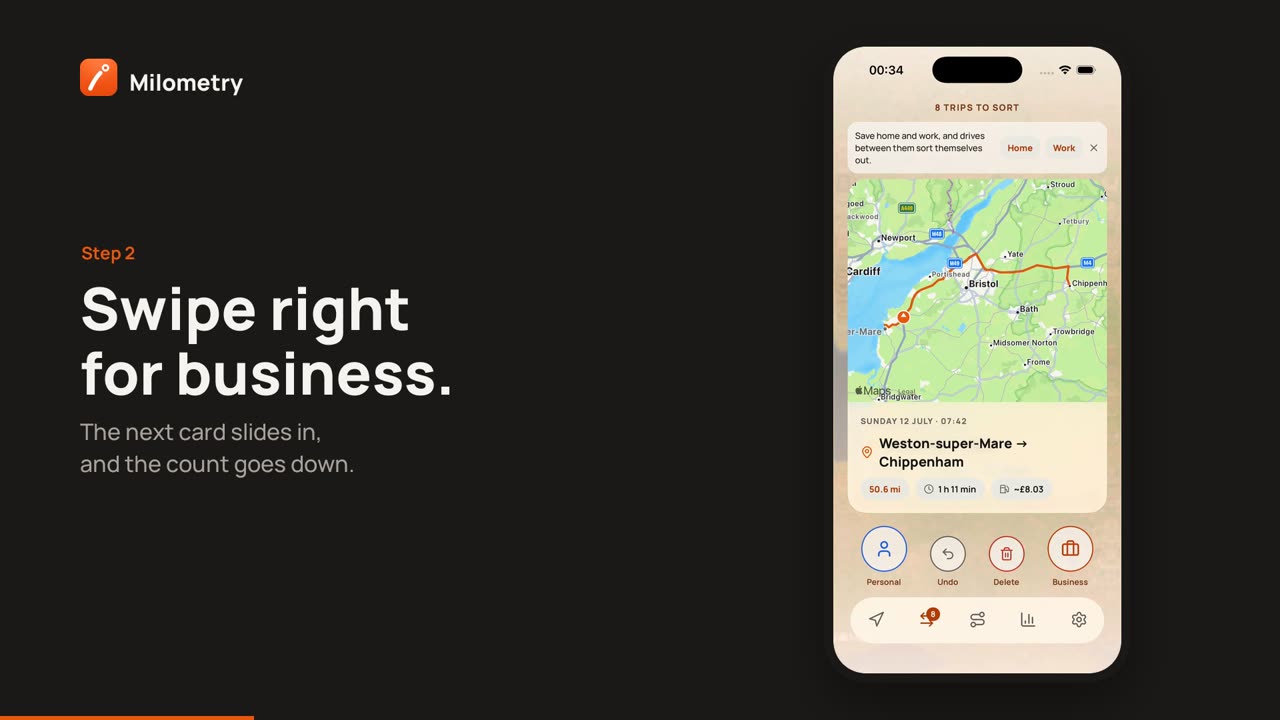
Tap Classify at the bottom of the screen. The header tells you how many are waiting, for example "12 trips to sort". Each card is one drive: the route replays on the map, with the date, the distance and where it started and ended, so you can remember what it was.
Two hints can appear on a card:
- Usually Business · Head office means the trip starts or ends at a place you have tagged (step 3).
- Working hours, probably business comes from your working hours. It is a hint, not a decision.
2. Swipe, or tap the buttons
- Swipe right for Business.
- Swipe left for Personal.
Under the card are four buttons that do the same job: Personal, Undo, Delete and Business. They also work with VoiceOver and TalkBack.
Went the wrong way? Tap Undo and the last card comes back. You can undo several in a row while you stay on this screen. When the deck is empty you see All caught up, with Undo last underneath in case the final swipe was wrong.
Delete is for junk, such as a journey recorded on a train. It asks first, then moves the trip to the Bin, where you can restore it later. See editing, merging and splitting trips.
3. Let tagged places sort for you
This is the part worth doing once. Open Settings → Locations.
Under Spotted in your trips, Milometry lists places you keep going to, worked out from where your journeys start and end. Each one says "Seen in 4 trips. What is it usually?". Tap Business, Personal, Home, Workplace or Ignore.
From then on, a trip that ends at a tagged place (or, failing that, starts at one) arrives with that answer suggested. When two or more waiting trips match tagged places, a button appears above the deck, for example Auto-sort 5 trips from your tagged places. Tap it and they are filed together. Undo still works afterwards.
Home and Workplace do one more job: they are how Milometry spots ordinary commuting and keeps it out of your claim. That has its own page: Home, Workplace and your saved places.
4. Clear a backlog from the Trips tab
Back from a fortnight away? The Trips tab handles many trips at once.
- Open Trips and tap the Unsorted filter. In versions before 1.1.0 it is called Unclassified.
- Press and hold any trip. It is selected and a bar appears at the bottom.
- Tap more trips to add them, or tap All in the bar to select everything on screen.
- Tap Business or Personal in the bar.
Selection only covers what is on screen, so filter or search first. Changing the filter or the search clears the selection, so nothing you cannot see gets changed.
Take care with Delete in that bar. It removes the selected trips for good, and it says so: "This cannot be undone." It does not use the Bin.
Single rows swipe too: right for business, left for personal, with an Undo straight after.
5. Change your mind later
Open any trip from Trips and tap Business or Personal under the journey card. The figures update straight away, because Milometry works them out from your trips each time rather than storing them.
If you have marked that tax year as submitted, Milometry asks first: This year was marked as submitted. Choose Change it anyway only if you mean to. See the year-end claim.
Sorting from the Lock Screen
With notifications on, the Trip saved notification lets you sort a drive without opening the app. Do it once you have parked. See notifications and reminders.
If something is not right
- A place keeps suggesting the wrong answer. In Settings → Locations, tap it under Saved places and change Trips here are usually. No bias keeps the place but stops it suggesting anything.
- Auto-sort does not appear. It needs at least two waiting trips that start or end inside a tagged place.
- A card says it looked like a train or a bus. Tap Bin it, or It was a drive if it was. See quiet mode and trains.
- Your daily office run shows as claimable. Tag your home as Home and your office as Workplace. See Home, Workplace and your saved places.

