 Milometry
Backups and auto-export
Keep a copy of your log somewhere you trust: one-off exports, a full backup file with an optional passphrase, and automatic copies to a folder or network drive.
Chapters
Transcript
General information, not advice. Written as general information on 27 September 2026. Details change, so check the official source or a qualified professional before you rely on it. This is not legal, tax or financial advice.
Milometry keeps your trips on your phone. There is no Milometry account and no server of ours holding a copy, so if the phone is lost or broken, the copy you made yourself is the one that counts. Everything below is in Settings → Export & sync.
1. Export a spreadsheet or a claim
Tap Export under Share a snapshot. Choose What to export (Journeys, Fuel or Route points), As a (Spreadsheet or Claim document) and Which period, then tap Export at the bottom and send the file wherever you like. A line near the button says what the file will contain before it is made. Turn a year of driving into a claim covers the claim document.
2. Save a full backup
- Under Backup & restore, tap Full backup (JSON).
- Your phone's share sheet opens. Save the file to Files, Google Drive or another place you trust.
The backup holds your trips and their routes, vehicles, fill-ups, places, expenses, rates and settings. It leaves out:
- receipt photos, which are separate files (the expenses and their amounts are in the backup);
- the network drive password and the backup key;
- the network drive's address and username, so you set that up again after a restore;
- the title of a calendar event that kept the app quiet, and on Android the recent activity log.
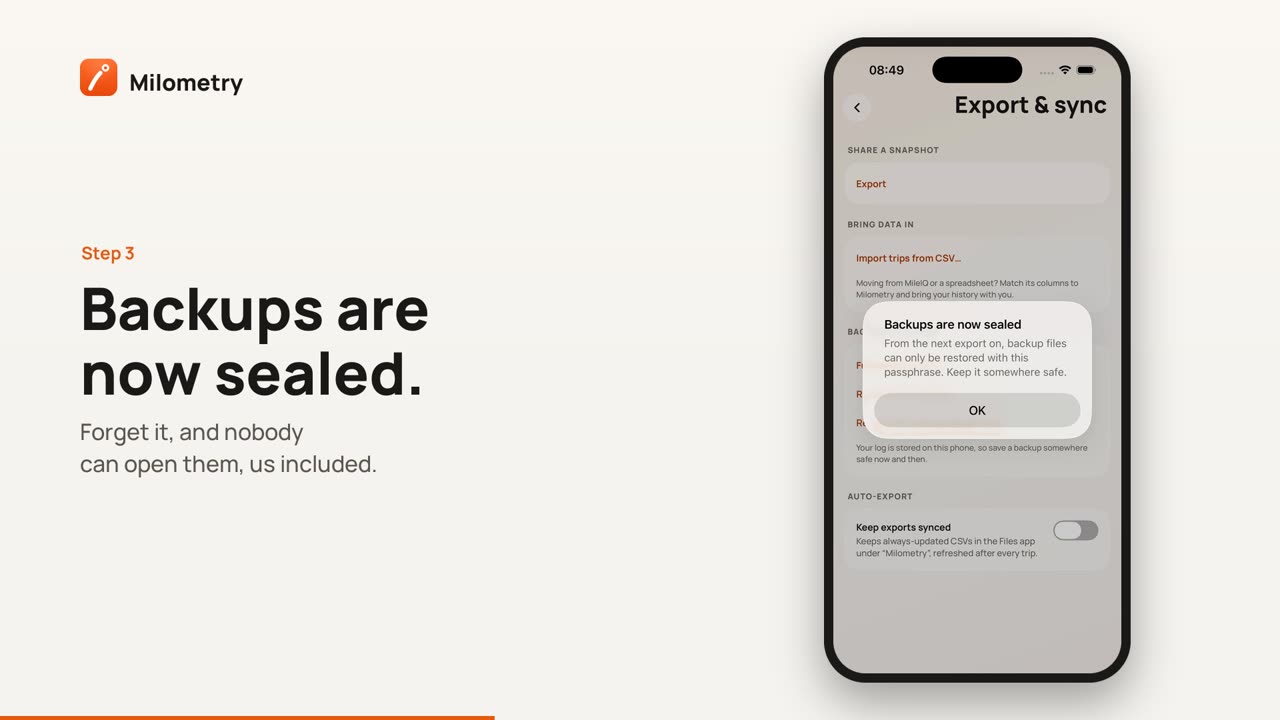
3. Seal backups with a passphrase
Without a passphrase, anyone who has the backup file can read your whole driving history. With one, it is sealed.
- Under Backup & restore, tap Set a backup passphrase.
- Type at least 8 characters, type them again in Type it again, and tap Set a backup passphrase.
- Backups are now sealed confirms it.
From then on every backup the app writes, by hand or automatically, is sealed. The passphrase itself is not stored. The key made from it is kept in your phone's secure storage (the keychain on iPhone, the Android Keystore on Android), for this phone only. Keep the passphrase somewhere safe: if you forget it, nobody can open those files, including us.
To stop sealing, tap Remove the backup passphrase. New files are readable again; files already sealed stay sealed.
4. Turn on auto-export
Under Auto-export, switch on Keep exports synced. From then on the app refreshes its files after trips and changes:
- Milometry Trips.csv and Milometry Fill-ups.csv, with your sorted trips and your fill-ups;
- a CSV for last month, such as Milometry 2026-08.csv;
- with Include full backup on (it is on unless you turn it off), Milometry Backup.json, plus one dated copy a month. The last six monthly copies are kept (a network drive keeps them all), so a problem today does not overwrite last month's backup.
Tap Update exports now to write them straight away. Under the button, each place the app writes to has a line with a tick and the time it last worked, or a warning with the reason it did not.
On iPhone
The files go into the Files app, under On My iPhone → Milometry. To have them in the cloud as well:
- Under Cloud folder, tap Choose cloud folder….
- Pick a folder in iCloud Drive, Google Drive or another provider that appears in the Files app.
- The screen now says Syncing to and the folder's name.
Use Change folder… or Stop syncing to this folder to change your mind.
On Android
If no folder is chosen yet, switching on Keep exports synced opens Android's folder picker straight away. Pick a folder on the phone, or one in Google Drive to have it in the cloud. Change sync folder… picks another. New receipt photos are copied into the same folder.
Google Drive, on either phone, is just a folder you pick. Milometry does not sign in to Google or any other provider and holds no password for them. The provider then stores and syncs the files like any other.
5. Back up to your own network drive
If you have a NAS or another server that speaks WebDAV, the app can copy its exports there too. This appears once auto-export is on.
- Under Network drive (NAS), tap Set up backup, then Next.
- Type the folder's WebDAV address, such as
https://nas.local:5006/milometry, and tap Next. Use an address that starts withhttps://where your drive supports it. - Type the username and password of an account that can write to that folder, and tap Next.
- Tap Connect. The app writes a small test file to check it works.
- The section now says Connected to and your drive's name. Test now checks it again; Disconnect removes it and forgets the password.
On iPhone, your phone may ask to let Milometry find devices on your local network. Allow it, or the app cannot reach a drive at home.
About http://. An address starting with http:// is not encrypted: your password and your trips would travel unprotected. The app shows a warning, and it still works, for example on your home network. For an http:// address that is not on your local network, you also have to switch on Use it anyway before you can go on. The app does not follow a redirect to another address; if your server sends one, enter the final address instead.
The password is kept in your phone's secure storage, not in the backup file, and is sent only to the address you entered. Receipt photos are not copied to a network drive.
If something is not right
- A warning next to Backup, saying it is held back. A passphrase was set on another phone and its key did not come across. Tap Set a backup passphrase and enter it again. See Moving to a new phone.
- The folder line shows a warning. The folder may have been moved or its permission withdrawn. Choose the folder again.
- The network drive will not connect. Check the address, that WebDAV is switched on for your drive, and that the phone is on the same network if the drive is at home.
- In versions before 1.1.0, the network drive password and the backup key were stored in the app's database, and the app followed redirects and did not warn about
http://.

