 Milometry
Add parking, tolls and receipts to a trip
Record what a journey cost you on top of the miles, attach the receipt photo, and find it again in your statements and exports.
Last reviewed 27 September 2026. Figures for tax year 2026-27.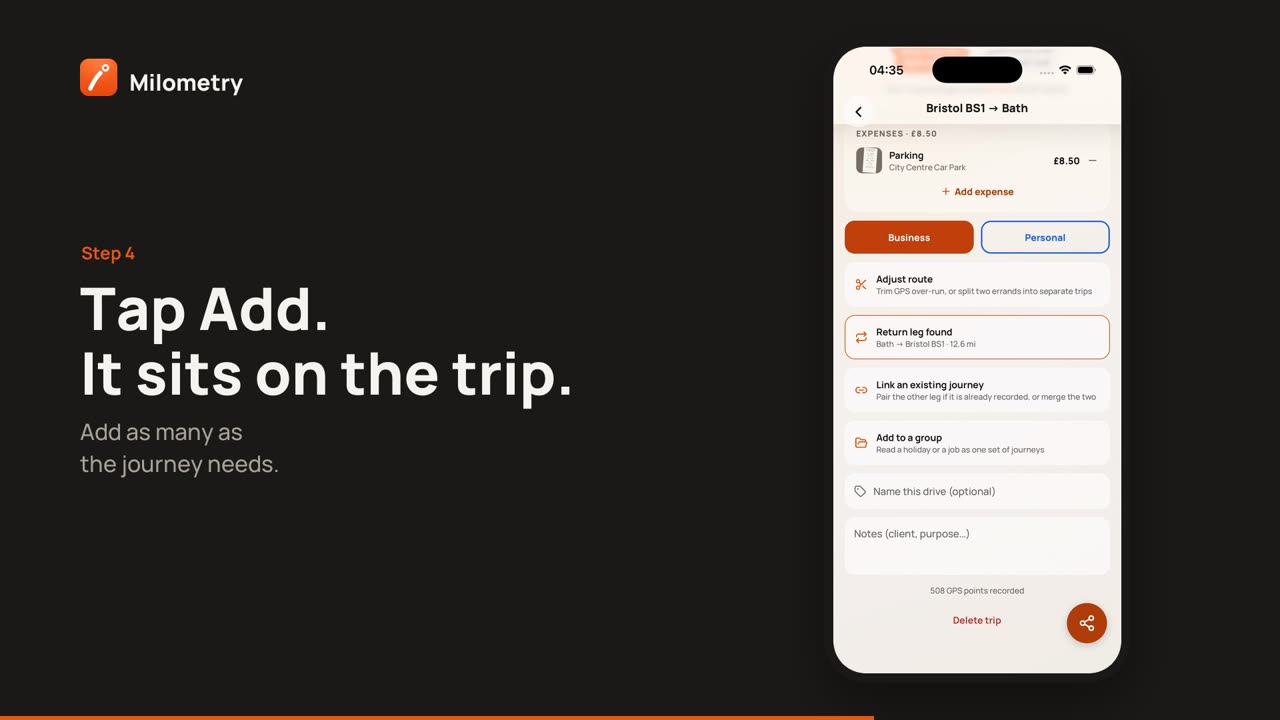
Chapters
Transcript
General information, not advice. Written as general information and correct as far as we know on 27 September 2026. Tax rules change, and how they apply depends on your own circumstances. This is not tax, legal or financial advice: check with an accountant, a tax adviser or HMRC before you rely on it.
The mileage rate covers the car. It does not cover the car park, the bridge toll or the clean air zone charge you paid on the way, and those are easy to lose. Milometry lets you pin each one to the journey it belongs to, with a photo of the receipt.
1. Take the photo first
Milometry picks the receipt from your photo library rather than opening the camera. Once you have parked, take a photo of the ticket or receipt with your phone's camera app, so it is ready to attach.
2. Add the expense to the trip
- Open the Trips tab and tap the journey.
- Scroll down to Expenses and tap Add expense.
- Choose what it was: Parking, Toll, ULEZ/charge or Other.
- Type the Amount (£).
- Add a Note (optional) if it helps, such as the car park's name.
- Tap Attach receipt photo and pick the photo from your library. A small preview appears on the button. Tap it again (it now reads Change receipt photo) if you picked the wrong one.
- Tap Add.
The expense now sits on the trip with its thumbnail and amount. You can add as many as the journey needs.
The photo is copied into Milometry's own storage on your phone, so deleting it from your photo library later does not take it out of the app.
To take one off, tap the remove button beside it and confirm Remove.
3. Where expenses show up
- Monthly statements. A month with expenses shows a line such as "+ £12.40 in trip expenses (parking, tolls…)", and the statement PDF lists them.
- Journeys spreadsheet. In Settings → Export & sync → Export, choose Journeys, Spreadsheet, then switch on Extra columns under Detail. Each trip gets a column with the total of its expenses.
4. Keep the receipts safe
Receipt photos are files, not part of the full backup file. The backup keeps each expense and its amount, but not the picture. To keep a copy of the pictures off the phone:
- On Android, turn on auto-export to a folder you choose (for example in Google Drive). New receipt photos are copied into that folder alongside the exports.
- On iPhone, keep the original photos in your photo library or iCloud Photos, which is where you took them.
See Backups and auto-export for setting up the folder.
What you can usually claim
This depends on how you work, and it is worth checking your own case with HMRC:
- Employees using their own car may be able to claim tax relief from HMRC on parking fees, tolls and congestion charges they paid on work journeys and were not paid back for. That relief reduces the tax they pay; it is not a refund of the amount. The mileage rate itself already covers fuel and running costs, so those are not claimed separately.
- Self-employed drivers can usually count parking on business journeys as an allowable expense, which lowers the profit their own tax is worked out on. Fines and penalty charges are not allowable.
- Neither covers ordinary travel between home and your usual workplace.
If something is not right
- Attach receipt photo does nothing. Milometry needs access to your photos. Allow it in your phone's settings under Milometry, then try again.
- The receipt belongs to a different trip. Remove it here and add it again on the right trip. Expenses cannot be moved between trips.

