 Milometry
Monthly statements for invoices and expenses
Open a month's statement, check the figures, and share it as a PDF, a CSV or an image.
Last reviewed 27 September 2026. Figures for tax year 2026-27.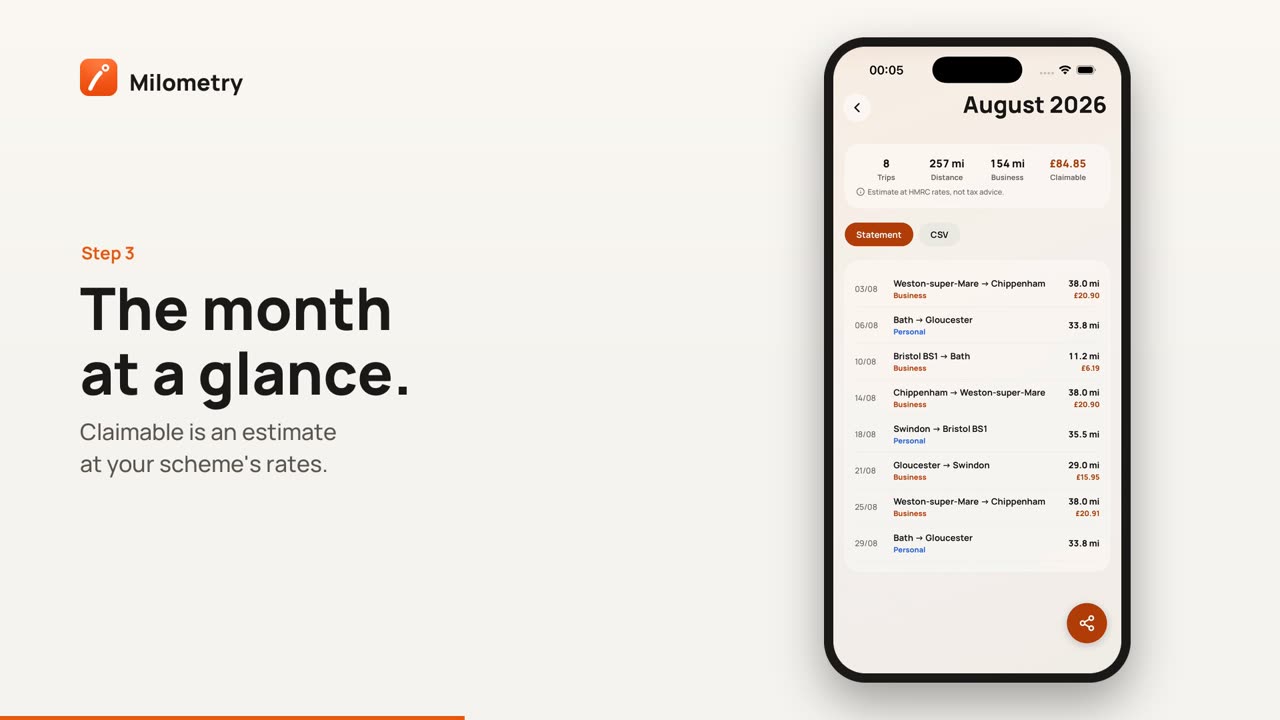
Chapters
Transcript
General information, not advice. Written as general information and correct as far as we know on 27 September 2026. Tax rules change, and how they apply depends on your own circumstances. This is not tax, legal or financial advice: check with an accountant, a tax adviser or HMRC before you rely on it.
If you send mileage to an employer each month, or recharge it to clients, a monthly statement is the document you want. Milometry builds one for every month you have driven, ready to share as a PDF, a CSV or an image.
1. Open Statements
Open Insights and tap Statements ("Monthly and tax-year statements as PDF or CSV").
The Monthly tab lists every month with trips, newest first, for example "32 trips · 640 mi · 410 mi business". Tax years lists whole tax years instead.
2. Open a month
Tap a month. At the top are four figures:
- Trips and Distance: everything you drove that month.
- Business: business miles, with ordinary commuting left out.
- Claimable: the business miles at your scheme's rates.
Underneath, you may see:
- a line such as "+ £18.40 in trip expenses (parking, tolls…)", if you attached any to trips. See receipts, parking and tolls.
- a line comparing what your employer pays with the approved rate, if you have entered their rate in Settings → Mileage scheme. The difference is usually what tax relief can be claimed on, if you are an employee.
Then comes every trip in the month: the date, where from and to, how it is sorted, the distance, and the figure for business trips.
3. Check it before you send it
- Unsorted trips appear on the statement but carry no figure. Sort them first on the Classify tab.
- The rate follows the tax year, not the month. In the UK the first 10,000 business miles in a tax year are at 55p and the rest at 25p, so a month late in a busy year can show 25p trips even though earlier months were all at 55p.
- Personal trips are listed too, marked as personal, so the month's distance adds up.
Tap CSV at the top of the list to see the same month as spreadsheet text. Copy CSV to clipboard copies it, ready to paste.
4. Share it
Tap the share button in the corner. Share this statement offers:
- Share as image: a picture of the month's totals, for a message.
- Share PDF: a one-page mileage statement listing each trip's date, journey, type, distance and figure, with the totals and a table of trip expenses.
- Share CSV: the spreadsheet, for your own accounts or an expenses system.
Each opens the share sheet, so you can email it or save it to Files.
A statement is not the claim PDF
The monthly statement is a summary of everything you drove. For a tax claim, use the claim PDF from the Year end screen or from Settings → Export & sync → Export. It lists business journeys only, with a Purpose column, the rates and a signature line.
Billing one client or job
To recharge one client, put their trips in a group: open a trip and tap Add to a group. On Trips → Groups, the group's own screen can carry your charge-out rate, which is your own price and nothing to do with the tax rates, and exports a Journeys CSV or a Summary PDF for that group alone.
If something is not right
- A month is missing. Statements only list months with trips in them.
- Business looks lower than you expected. Trips between Home and Workplace are left out as commuting. See Home, Workplace and your saved places.
- Claimable is lower than the miles times 55p. You are past 10,000 business miles in the tax year, so later trips are at 25p.

