 Milometry
Turn a year of driving into a claim
How the two UK rates work, what the figure in the app means, and which export to send.
Last reviewed 27 September 2026. Figures for tax year 2026-27.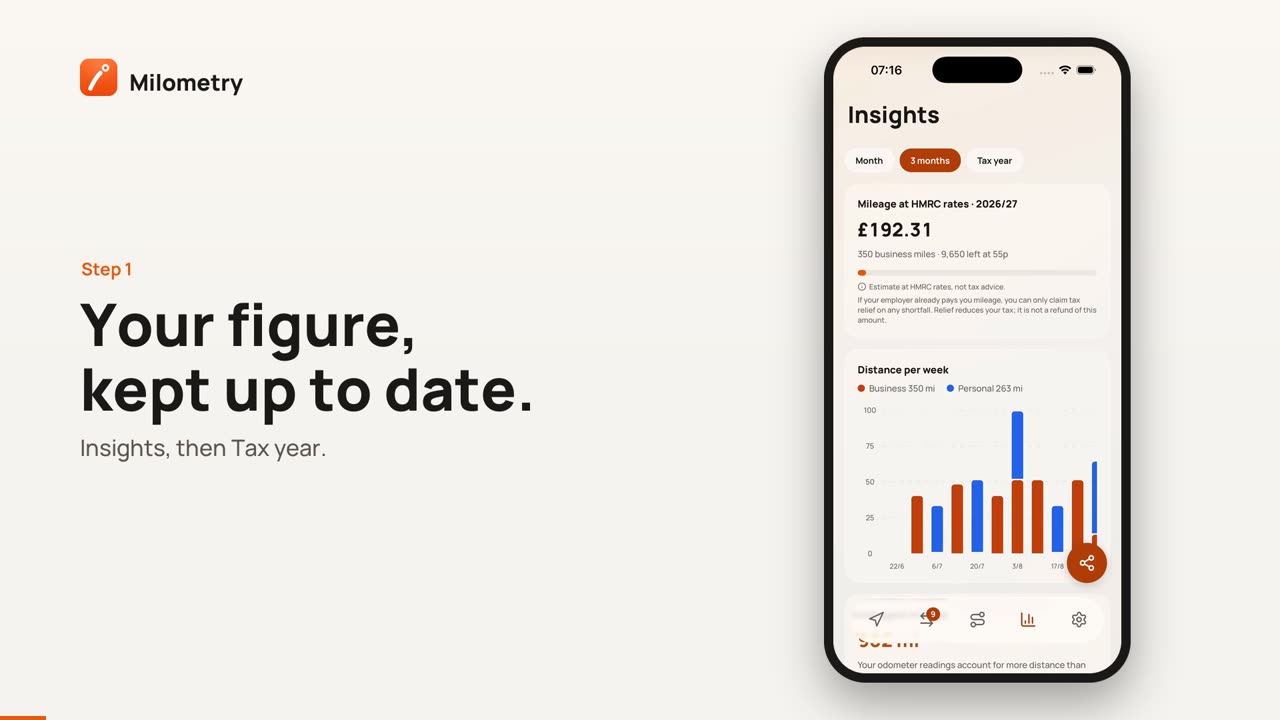
General information, not advice. Written as general information and correct as far as we know on 27 September 2026. Tax rules change, and how they apply depends on your own circumstances. This is not tax, legal or financial advice: check with an accountant, a tax adviser or HMRC before you rely on it.
Milometry keeps your mileage figure up to date as you drive, so the January scramble becomes an export that takes minutes. This page explains what the numbers mean, what to check, and what to send.
The two rates
HMRC's approved mileage rates for cars and vans, from 6 April 2026, are:
- 55p a mile for the first 10,000 business miles in a tax year
- 25p a mile after that
Before 6 April 2026 the first rate was 45p. The 10,000 miles count all the cars and vans you use for one job, or all the vehicles in your business if you are self-employed, not each car separately. The tax year runs 6 April to 5 April.
Milometry applies this as it goes, so a journey's figure depends on where you are in the year. The approved amount for a 200-mile job is £110 at 55p, or £50 once you are past 10,000 business miles in the year.
What the figure means
Screens label the figure Mileage at HMRC rates. It is the approved amount for your business miles: an estimate of what the rules allow, not money you will receive. In versions before 1.1.0, this label is HMRC claim.
What you do with it depends on how you work:
- Employees. If your employer pays you the full approved rate, there is nothing more to claim. If they pay less, you can claim tax relief on the difference, and relief reduces your tax rather than refunding the amount. If they pay more, the extra is taxable. Tell Milometry what your employer pays in Settings → Mileage scheme, under What your employer pays, and it shows the difference.
- Self-employed. The same rates can be used as simplified expenses, a deduction from your profits instead of your actual running costs. You cannot use them for a vehicle you have claimed capital allowances on.
Carrying colleagues? See passengers and splitting costs.
1. Check before you export
- Open Insights and tap Tax year. The card shows your business miles, the figure, and how far you are from the 10,000-mile line.
- Open Classify. If trips are waiting, sort them: an unsorted trip is in no total.
- Make sure commuting is tagged. Without Home and Workplace in Settings → Locations, your daily office run is probably counted as business. See Home, Workplace and your saved places.
- Back on Insights, look for Unlogged mileage. It appears when your odometer readings from fill-ups show more miles than your log does. Settings → Missed drives lists journeys the app did not see. See fixing missed drives.
The Year end screen walks through these checks in order.
2. Export
- Go to Settings → Export & sync and tap Export.
- Under What to export, choose Journeys.
- Under As a, choose Claim document (a PDF) or Spreadsheet (a CSV).
- Under Which period, pick the tax year, for example 2025/26. Self Assessment for a year ending 5 April is usually filed online by the following 31 January, so you will often be exporting a year that has already finished. Pick it rather than the current one.
- For a spreadsheet, Extra columns adds exact distances, duration, vehicle, passengers and expenses.
- Check the summary line, which says how many journeys it will include, then tap Export and choose where to send it.
What you get:
- Claim document: business journeys only, with commuting left out, the rates, the totals and a signature line. Add your name first in Settings → Mileage scheme, under Name on documents.
- Spreadsheet: every journey with its date, places, group, distance, type, rate paid, figure and notes. The working document an accountant usually wants.
Full backup (JSON) on the same page is not for your accountant. It is how you move your history to a new phone. See backups and auto-export.
Monthly, if you invoice
Insights → Statements breaks the same data down by month, with any parking, tolls or charges you attached. See monthly statements.
You can also share a single journey as a PDF: open the trip, tap the share button and choose Share as PDF. That helps when somebody queries one line rather than the whole claim.
Keeping it hands-off
Turn on Auto-export in Settings → Export & sync and Milometry writes up-to-date CSVs, plus a full backup, to iCloud Drive, a folder you choose or your own network drive after each trip. See backups and auto-export.
Sources
- Travel, mileage and fuel rates and allowances (HMRC)
- Increasing mileage rates: policy paper (HMRC)
- Expenses and benefits: business travel mileage for employees' own vehicles, rules for tax (HMRC)
- Claim tax relief for your job expenses: vehicles you use for work (HMRC)
- Simplified expenses if you're self-employed: vehicles (HMRC)
- Employment Income Manual EIM31280: the 10,000-mile threshold and more than one employment (HMRC)
- Self Assessment tax returns: deadlines (HMRC)

