 Milometry
Sharing trip and month cards
Turn a trip, a month or a tax year into a picture to send, what each picture shows, and how to keep place names off it.
Chapters
Transcript
General information, not advice. Written as general information on 27 September 2026. Details change, so check the official source or a qualified professional before you rely on it. This is not legal, tax or financial advice.
Milometry can turn a single trip, a monthly statement or a whole tax year into a picture you can send to someone or post. The picture is made on your phone, you see exactly what it looks like before it goes, and it only goes where you send it.
For paperwork, such as an expenses claim, share a PDF or CSV instead. Claiming and exports covers those.
Share a trip
- Open the Trips tab and tap a trip.
- Tap the share button at the bottom right.
- Share this trip asks how. Tap Share as image.
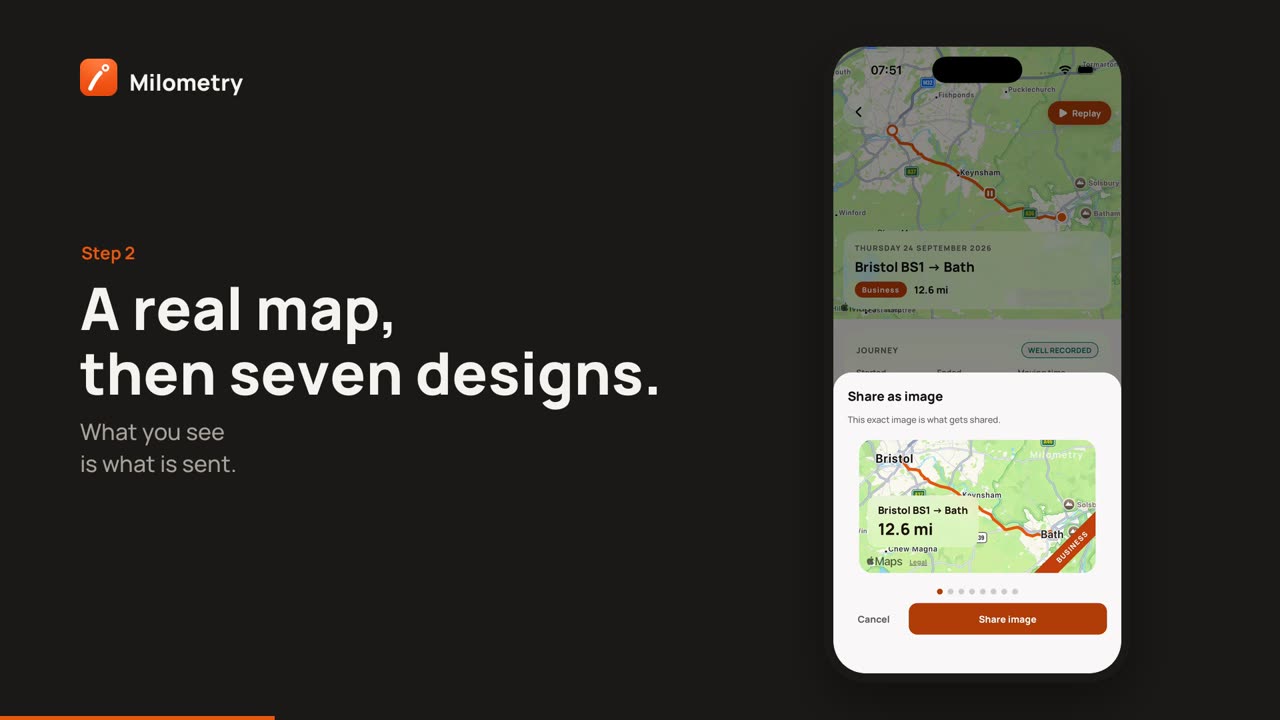
- A sheet opens called Share as image, with the line This exact image is what gets shared. Swipe the picture left and right to choose a style. The first is a real map of the route; after it come seven designs in different colours.
- Tap Share image. Your phone's own share sheet opens: pick an app or a person, or save the picture.
Cancel closes the sheet without sharing anything.
What is on a trip card
- the date,
- the trip's name, or if it has none, where it started and where it ended, as place names,
- the distance and how long it took,
- for a business trip, the claim for that trip, with the line saying it is an estimate and not tax advice,
- a Business or Personal ribbon, once the trip is sorted,
- the shape of the route. On the map style it is drawn on a real map; on the other styles it is a line on a plain background, still recognisable to anyone who knows the area.
Not on it: your name, the car, the number plate, the exact times, notes, receipts or anything from your other trips.
Share a month or a tax year
- Open the Insights tab and tap Statements. (It is also under Quick actions on the Track tab.)
- Tap a month under Monthly, or a year under Tax years.
- Tap the share button, then Share as image in Share this statement.
- Swipe to choose a style, then tap Share image.
A Monthly statement card shows the month, the total claim, the number of trips, the total distance and the business distance, with the estimate line.
There is also a card for the whole claim year. On the Insights tab, tap the share button at the bottom right. The Claim year card shows the claim for the year you have picked, the number of business trips and the business distance.
Month and year cards carry no place names and no routes.
Place names and privacy
A trip's start and end are named from where you parked, and that can be your street. Before sharing a trip that starts or ends at home, or at a client's address, think about who will see it.
To keep them off the picture:
- Give the trip a name. On the trip screen, type something into Name this drive (optional), such as "Client visit". The name replaces the place names on the card.
- Remember the route. Even with a name, every trip card shows the route's shape, and the map style shows it on a real map. For a route you would rather not show, share the month card instead.
Look at the picture in the sheet before you tap Share image. What you see is what is sent.
If something is not right
- The claim is missing from a trip card. It only appears on trips sorted as business.
- The map style is blank. The map needs a moment and a connection to load. Wait a second, then share.
- Place names say "Unknown". The trip was saved without a connection and the names have not been looked up yet. Give it a name, or try again later.

