 Milometry
Edit, merge, split and restore trips
Fix a trip that recorded badly: trim the ends, split two errands apart, join a drive broken by a stop, pair a there-and-back, and get a binned trip back.
Chapters
Transcript
General information, not advice. Written as general information on 27 September 2026. Details change, so check the official source or a qualified professional before you rely on it. This is not legal, tax or financial advice.
Recording is automatic, so now and then a trip comes out wrong. It ran on after you parked, two errands became one drive, or a fuel stop broke one drive into two. Every fix starts from the trip itself: open Trips and tap it.
Some of these fixes cannot be reversed. Each step says which.
What you can change on the trip screen
- Business or Personal: the two buttons under the journey card.
- The car: with more than one vehicle, "Drove a different car? Pick the right one:" lists them. Tap the right one.
- The name: the Name this drive (optional) box near the bottom.
- The purpose: the notes box, Notes (client, purpose…). Worth filling in for business trips. Notes go into the Purpose column of the claim PDF, and HMRC asks for the reason for each journey.
- A group: Add to a group files the trip under a job or a client. The group name also goes into the Purpose column and the CSV.
- Passengers and expenses: see passengers and splitting costs and receipts, parking and tolls.
Changes save as you make them, and every figure updates at once.
Distance and times cannot be typed in. On a recorded trip they come from the route, so you correct the distance by trimming the route (step 1). If a trip is too wrong to trim, or a trip you added by hand has the wrong distance, delete it and add it by hand again.
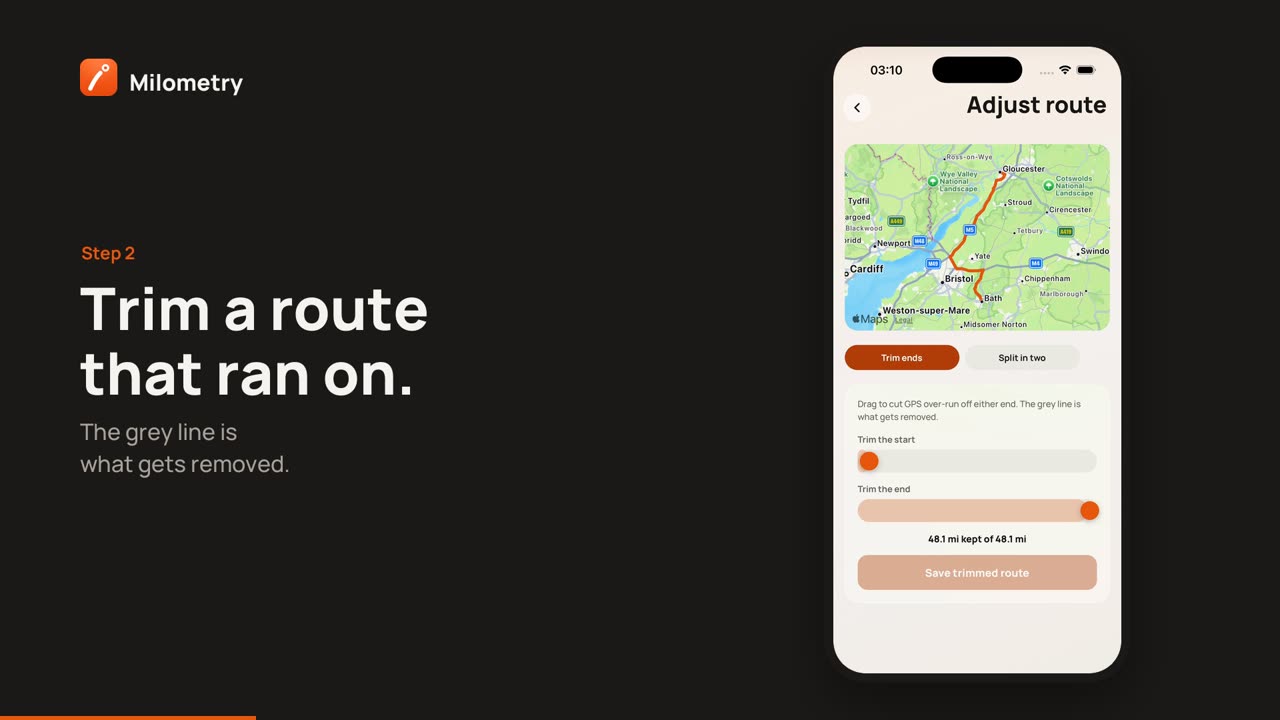
1. Trim a route that ran on
- On the trip, tap Adjust route.
- Stay on Trim ends. Drag the Trim the start and Trim the end sliders. The grey line on the map is what gets removed, and the line underneath shows what is left, for example "12.4 mi kept of 13.1 mi".
- Tap Save trimmed route.
The distance is worked out again from what is left. There is no undo: the trimmed points are gone. Adjust route only appears on trips with a recorded route, so not on trips added by hand.
2. Split two errands recorded as one
- Tap Adjust route, then Split in two.
- Milometry lists the points where the car sat still. Tap one to split there, or drag the Split point slider.
- Tap Split into two trips. You see Trip split.
Both halves keep the original Business or Personal answer, so re-sort one if it was different. The time of the split is estimated from how the distance divides. There is no undo, although you can merge the halves back (next step). The split point is given a place name, as a recorded stop is, when there is a connection.
3. Merge a drive broken by a stop
If a trip began less than 45 minutes after the previous trip in the same car ended, its screen shows Merge with previous trip, naming the earlier one. Tap it, then Merge.
The two become one journey, from the first trip's start to the second trip's end, with the distances added together. If both were sorted the same way, that answer is kept. If not, the merged trip goes back to unsorted for you to decide. Notes, expenses and receipts from both are kept. A merge cannot be undone.
4. Pair a there-and-back
An outward drive and a return drive are two trips, and both count. Pairing them just shows them together as a round trip.
- If Milometry spots the other leg, the trip shows Return leg found. Tap it, then Link them, or Not this one.
- Otherwise tap Link an existing journey. The closest trips in time come first, and you can search. Tap the other leg, then Link as pair.
- Once paired, the trip shows Return journey with the round-trip distance. Tap it to open the other leg. To undo, tap the unlink button beside it and confirm Unlink. Both trips stay exactly as they were.
The same screen offers Merge into one, for two halves of one journey that are less than 45 minutes apart. Further apart than that, you see Too far apart to merge, so pair them instead.
Missing the way back altogether? Add return journey opens a new hand-added trip with the places swapped and the distance filled in. Check it before you save.
5. Undo, the Bin and restoring
| Where | What happens | Can you get it back? |
|---|---|---|
| Undo on the Classify tab | Reverses the last swipe or delete | Yes, while you stay on the screen |
| Undo after swiping a row in Trips | Reverses that swipe | Yes, straight after |
| Delete on the Classify tab, or Bin it | Moves the trip to the Bin | Yes, from the Bin |
| Delete trip on a trip screen | Deletes it | No |
| Delete in the Trips selection bar | Deletes the selection | No |
| Delete inside the Bin | Deletes it | No |
To restore from the Bin:
- Open Trips and tap the Bin filter.
- Press and hold a trip, and tap any others you want back.
- Tap Restore.
Restored trips go back to the Classify tab, unsorted. Nothing in the Bin counts towards any total. If you are not sure about a trip that is still waiting to be sorted, Delete on the Classify tab is the safer choice, because it can be undone.
Years marked as submitted
If you have marked a tax year as submitted on the Year end screen, changing the sorting, trimming, splitting, merging or deleting a trip in that year first shows This year was marked as submitted. Choose Change it anyway only if you mean to, because your log would then differ from the figures you claimed. See the year-end claim.
If something is not right
- No Merge with previous trip. The gap is over 45 minutes, or the two trips are on different cars. Check the car on each first.
- No Adjust route. The trip has no recorded route, usually because it was added by hand.
- A drive is missing altogether. See fixing missed drives.

