 Milometry
Rates: your country, a custom rate, and your employer
Pick the scheme your claim is worked out under, set your own rate if you need to, and tell Milometry what your employer already pays.
Last reviewed 27 September 2026. Figures for tax year 2026-27.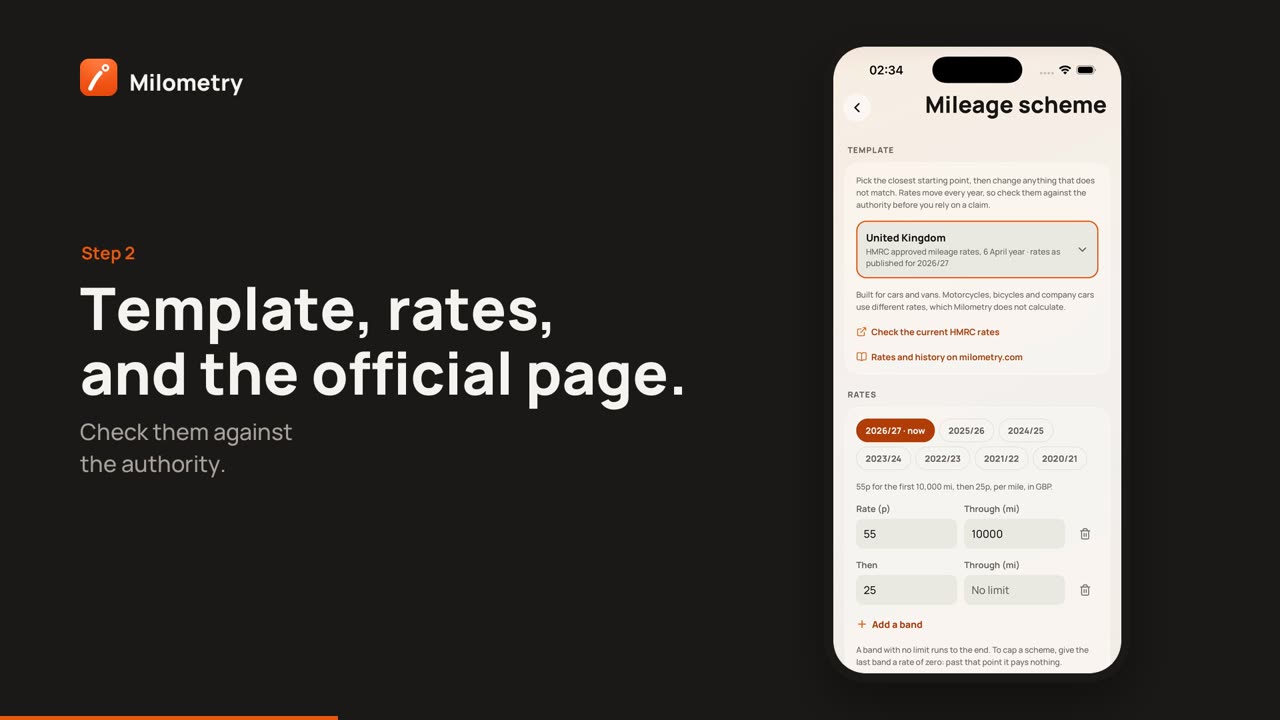
Chapters
Transcript
General information, not advice. Written as general information and correct as far as we know on 27 September 2026. Tax rules change, and how they apply depends on your own circumstances. This is not tax, legal or financial advice: check with an accountant, a tax adviser or HMRC before you rely on it.
Every claim figure in Milometry comes from one set of rules, which the app calls your mileage scheme: the rate per mile or kilometre, the bands, the currency and the day your claim year starts. Get this right and your trips are priced at the rates that apply to you. This tutorial covers choosing it, changing it, and telling the app what your employer pays you.
1. Choose your country's scheme
When you first set the app up, the Whose rules? screen asks for a Country or scheme. You can change it at any time:
- Open Settings → Mileage scheme (under Rates and claims).
- Tap the box under Template. A list opens with each country Milometry ships rates for, plus Company scheme and Something else.
- Tap your country. The rates, bands, unit, currency and claim year fill in from it.
- Read the figures under Rates. Tap Check the current HMRC rates (or your country's authority) to compare them with the official page, or Rates and history on milometry.com for our page on that country.
- Tap Save scheme.
The scheme is built for cars and vans. Motorcycles, bicycles and company cars use different rates, which Milometry does not calculate.
2. Set a custom rate
If the published rate is not the one you use, you have three options on the same screen:
- Company scheme in the Template list: one rate your employer pays, which you set yourself.
- Something else: start from scratch and set every rate yourself.
- Edit any template. Change a figure under Rates, the limit in Through (miles), or tap Add a band. The Template then reads Edited scheme. A band with no limit runs to the end of the year.
Then tap Save scheme. Changing rates affects this year and later ones. Claims for earlier years keep the rates they were worked out with. To correct an earlier year on purpose, tap that year's button above the rates first, then save.
Under Measured in you can switch between miles and kilometres. The rates and limits are converted with it, so a journey keeps the same value.
3. Tell it what your employer pays (UK employees)
If you drive your own car for work and your employer pays you a mileage allowance:
- In Settings → Mileage scheme, find What your employer pays.
- Type their rate into Employer rate, per mile. Leave it blank if they pay the full approved rate.
- Tap Save scheme.
The line underneath then compares what you are paid with the approved rate. Two things follow from HMRC's rules:
- Paid less than the approved rate? You may be able to claim tax relief from HMRC on the difference, called Mileage Allowance Relief. Relief reduces the tax you pay; it is not a refund of the difference. Insights and the year-end screen carry a note saying so.
- Paid more than the approved rate? The screen shows Payments above the approved rate are taxable. Your employer reports the extra to HMRC and it is taxed as part of your pay.
For cars and vans, the approved rate for 2026 to 2027 is 55p a mile for the first 10,000 business miles in the tax year and 25p after that. The approved amount is your business miles for the year multiplied by those rates, across every car you use.
4. Where the rates come from
The rates for each country are built into the app. Milometry does not look them up online, so they change when you update the app from the App Store or Google Play. Keeping the app up to date is how newly published rates reach you.
Two prompts help you notice a change:
- Mileage rates have changed. Shown once, when an update brings new rates for the template you are on and you have not edited it. In 1.1.0, UK users whose scheme was saved at the old rate see: "HMRC's rate for cars and vans rose to 55p for journeys from 6 April 2026. Update your figures?" Tap Update to take the new rates and rework the claim years from that date on. Your employer rate is kept. Tap Not now to keep what you have; Settings → Mileage scheme still offers the new figures at the top, and tapping that card and then Save scheme takes them later.
- A new claim year has started. Shown once a year. Tap Review rates to open the scheme screen, or Keep as they are.
When a rate changes part way through a year, each trip is priced at the rate in force on the day it started.
If something is not right
- The claim looks too high. Check that your commute is not being counted as business, and that the right country is chosen. See Sort a week of driving in under a minute.
- The button reads Saved and cannot be tapped. Nothing has changed since you last saved.
- You changed the rate but last year's claim did not move. That is deliberate. Tap last year's button above the rates to correct it.

