 Milometry
Cars and vehicles
Add each car you drive, choose your usual one, and make sure every drive lands on the right car.
Chapters
Transcript
General information, not advice. Written as general information on 27 September 2026. Details change, so check the official source or a qualified professional before you rely on it. This is not legal, tax or financial advice.
Every trip belongs to a car. With one car there is nothing to think about. With two or more, a few minutes here saves moving trips between cars later. By the end you will have each car added with its fuel economy and plate, a usual car chosen, and, on Android, drives landing on the right car by themselves.
1. Open your vehicles
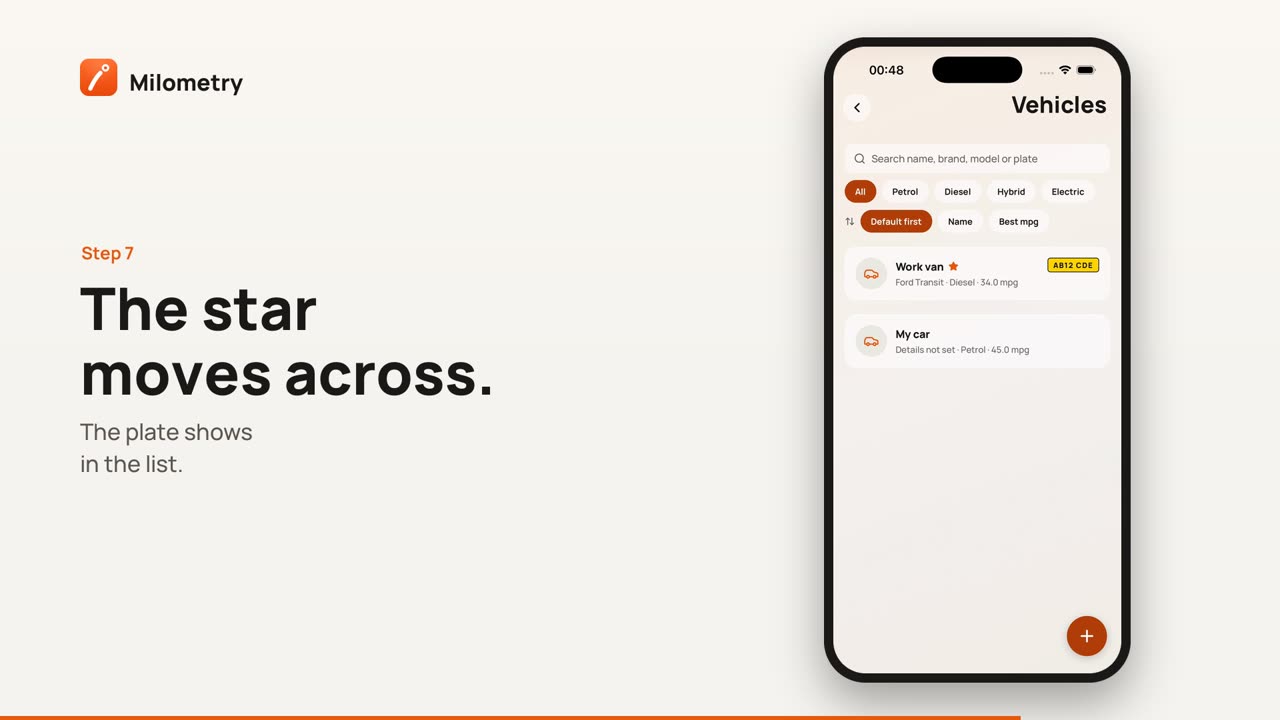
Open the Settings tab and tap Vehicles, the first row under Your car and places. The list shows each car with its brand, model, fuel type and economy, and its number plate on the right. The usual car has a star beside its name.
Once you have more than one, a search box and filters appear above the list: search by name, brand, model or plate, filter by fuel type, and sort by Default first, Name or Best mpg.
2. Add a car
Tap the + button at the bottom right. The form, from the top:
- Add a photo of the car, optional, so you can tell two cars apart at a glance.
- Name, what you call it: "Van", "Daily driver". Leave it empty and the brand and model are used instead.
- Brand and Model, picked from a list. Changing the brand clears the model.
- Number plate, which shows in the vehicle list and on the Track screen.
- Where the plate is registered, which is a separate question from which rates you claim. It starts from your mileage rates and you can change it.
- Fuel economy (mpg, UK), used for cost estimates until you have logged fill-ups.
- Standing costs per year, optional: insurance, road tax, servicing and depreciation as one yearly figure.
- FUEL TYPE: Petrol, Diesel, Hybrid or Electric.
Tap Add vehicle at the bottom to save it.
Only the name really matters. Economy is worth a rough figure now, because Milometry replaces it with what the car actually returns once you have logged two full tanks. Real mpg and fuel explains how.
3. Check the plate with the official service
With a plate filled in, and a country that has an official checker, links appear under the plate. For a UK plate they are Check the MOT and recalls and Check the tax and MOT status. Tapping one opens the government service in your phone's browser, with the plate filled in where the service allows it. Milometry does not read the answer or store it.
In versions before 1.1.0, these opened inside the app rather than in your browser.
4. Choose your usual car
The first car you add becomes your usual car. To change it, open another car and tick Use as my usual car, then tap Save changes. The star moves to that car. The box only appears on cars that are not already the usual one.
5. Pick the car for today
On the Track screen, the cars sit in a row of chips under the map while nothing is recording. Tap one to pick it. The pick stays until you tap another, so if a colleague borrows your usual car for a week, pick the other one once and leave it.
Which car a trip lands on, in order:
- On iPhone, a car card you tapped on the CarPlay screen.
- On Android, a car whose Bluetooth you have linked, if the phone is connected to it when an automatic drive starts.
- The car you picked on the Track screen.
- Your usual car.
A trip saved on the wrong car can be moved afterwards from the trip's own page.
6. On Android: link the car's Bluetooth
This is the step that makes a two-car household work without thinking. Do it sitting in the car, parked, with the phone connected to the car's stereo.
- Open Settings → Vehicles and tap the car.
- Scroll down and tap Link the car's Bluetooth. The first time, Android asks for permission to see nearby devices. Allow it.
- A list of what the phone is connected to right now appears. Tap Link followed by the stereo's name.
From then on, when an automatic drive starts while the phone is connected to that stereo, the drive is recorded on this car instead of the usual one. To undo it, open the same button while connected and tap Unlink followed by the stereo's name. If you are not in the car, the list offers Unlink saved devices instead.
This is Android only. iPhone does not let an app see which car stereo the phone is using, so on iPhone the Track screen pick and the usual car decide, or the car cards on the CarPlay screen if your car has it.
7. Remove a car you no longer drive
Open the car and tap Remove vehicle at the bottom. Its trips and fill-ups are kept; the car is just hidden from the list and the Track screen.
If something is not right
- Every automatic drive lands on the wrong car. Check which chip is picked on the Track screen. A pick you made weeks ago still stands.
- The Bluetooth link does nothing. It only applies to drives that start by themselves, and only while the phone is connected to that stereo as the drive starts. If the phone connects late, the drive may already be on another car.
- "No car stereo connected". Get in the car, let the phone connect to its Bluetooth, then try again.

