 Milometry
Logging a fill-up
The fill-up screen field by field, and why two full tanks with odometer readings are what turn your receipts into a real MPG.
Chapters
Transcript
General information, not advice. Written as general information and correct as far as we know on 27 September 2026. Tax rules change, and how they apply depends on your own circumstances. This is not tax, legal or financial advice: check with an accountant, a tax adviser or HMRC before you rely on it.
Every fill-up you log does three jobs. It adds to what you have spent on fuel, it updates the fuel price your trips are costed at, and, if you give it an odometer reading, it lets Milometry measure your car's real economy. This page goes through the screen once, so the next time takes about twenty seconds at the pump.
Log it once you have parked at the pump or pulled into a space on the forecourt, never while you are driving.
1. Open the fill-up screen
There are two ways in:
- On the Track tab, tap the notebook button at the top left of the map to open Quick actions, then tap Log fill-up.
- Or open Settings → Fuel & fill-ups and tap the + button at the bottom right.
The screen that opens is called Log fill-up.
2. Pick the car
If you have more than one vehicle, a row of buttons under Vehicle shows each one. The car you are currently driving is picked for you. Tap another to change it. With one vehicle, this row does not appear.
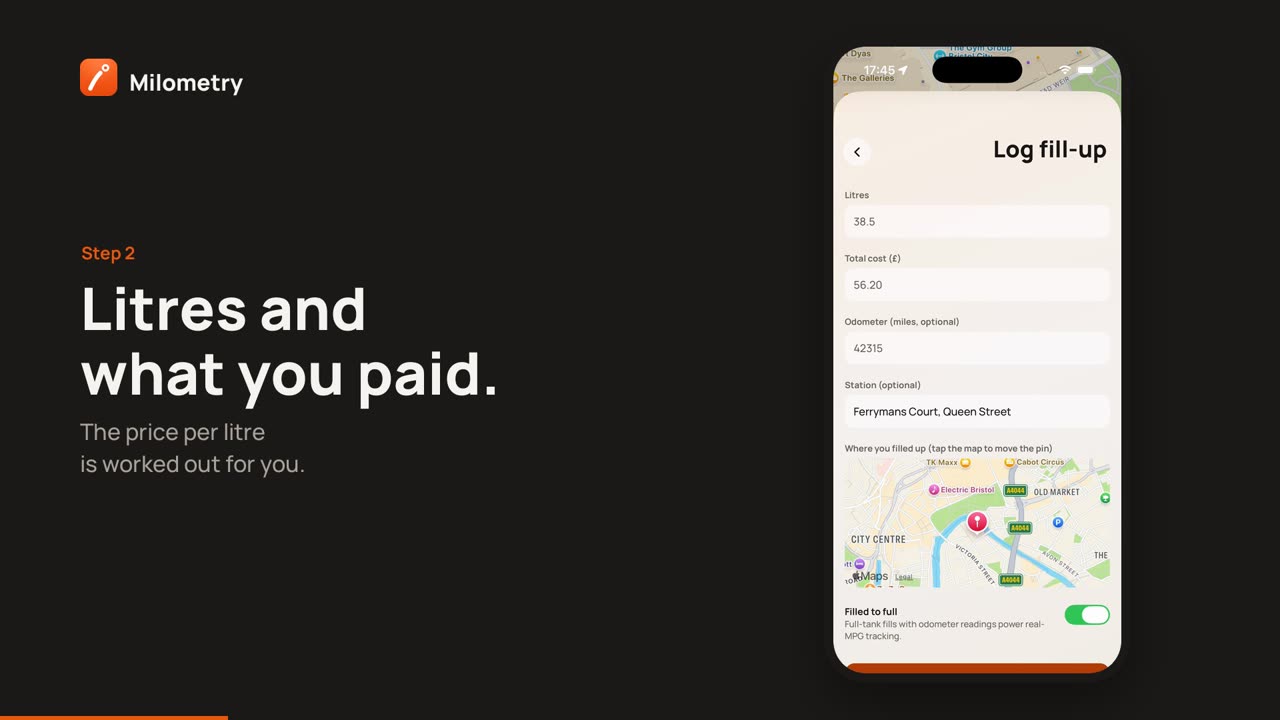
3. Litres and total cost
Type the two numbers from the pump or the receipt:
- Litres: how much fuel went in, for example 38.5.
- Total cost (£): what you paid, for example 56.20.
As soon as both are filled in, the price per litre appears underneath, worked out for you. There is no separate price field to fill in. These are the only two fields you must fill in; save without them and you see Missing details.
4. The odometer reading
Odometer (miles, optional) is the reading on your dashboard, in whole miles. It is optional, but it is the field that matters most. Without it, the fill-up counts towards your fuel spending but cannot count towards economy, because Milometry has no way to know how far the car went on that fuel.
It is easiest to read it before you get out of the car, while it is parked.
5. The station and the pin
Station (optional) is usually filled in for you. When the screen opens, Milometry asks your phone where you are, drops a pin on the map under Where you filled up (tap the map to move the pin), and looks up a name for that spot. If the name is wrong, type over it. If the pin is in the wrong place, tap the map where the pumps are, or drag the pin.
Looking up the name sends the pin's position to Apple on iPhone or Google on Android. If you have no signal, the field stays empty and you can type a name yourself.
6. Filled to full
Filled to full is on by default. Leave it on if you filled the tank until the pump clicked off. Turn it off if you only put some fuel in, for example £20 to get you home.
This switch is what makes economy work. A partial fill is still counted: its fuel is added to the stretch between the full tanks either side of it. It shows as PARTIAL in the list.
7. Save
Tap Save fill-up. You go back to where you started, and the fill-up is in the list under Settings → Fuel & fill-ups.
The fill-up is dated when you save it. There is no date field, which is one more reason to log it at the pump rather than at home later.
Why two full tanks
Real MPG needs two full-tank fill-ups, both with odometer readings. The first sets a starting point. At the second, Milometry knows how far you drove between them and how much fuel it took to fill the tank again. Until then the Real-world economy card shows Not enough data and the line Log two full tanks with odometer readings to see your MPG.
After that, every full tank adds another measurement. Get your real MPG, and use it explains what the economy card shows and where the figure is used.
Receipts
The fill-up screen has no photo field in 1.1.0. Keep the paper receipt if you need it for your records. Photos of parking and toll receipts are added to a trip instead: see Receipts, parking and tolls.
If something is not right
- No pin appears. Milometry does not have permission to use your location while the app is open. Tap the map to place the pin by hand. The fill-up saves either way.
- You typed a wrong number. Fill-ups cannot be edited. In Settings → Fuel & fill-ups, tap the red bin on that fill-up, confirm, and log it again. Your MPG is recalculated without the deleted one.
- It went to the wrong car. Delete it the same way and log it again with the right car picked.
- Your MPG looks too good. A fill-up you forgot to log leaves fuel out of that stretch, so the car looks more economical than it is. Fill-ups are dated when you save them, so it cannot be added afterwards in the right place. That one measurement will be off; the tanks after it are measured normally.

