 Milometry
The diagnostics log
Find the log of what Milometry did in the background, read it to see why a drive was or was not recorded, and send it to us when something is wrong.
Chapters
Transcript
General information, not advice. Written as general information on 29 September 2026. Details change, so check the official source or a qualified professional before you rely on it. This is not legal, tax or financial advice.
Most of what Milometry does happens while the phone is in your pocket: noticing you drive away, starting a trip, deciding it has ended, saving it. When one of those steps goes wrong, there is nothing on screen to show it. The diagnostics log is where the app writes those steps down, so you can see what happened, or send it to us.
1. Open the log
The log is tucked away on purpose, because most people never need it.
- Open the Settings tab and scroll to the bottom.
- Tap About Milometry.
- Tap the Milometry logo at the top of the page ten times in a row. Keep going without a long pause: after about three seconds the count starts again.
The Diagnostics screen opens.
2. Read it
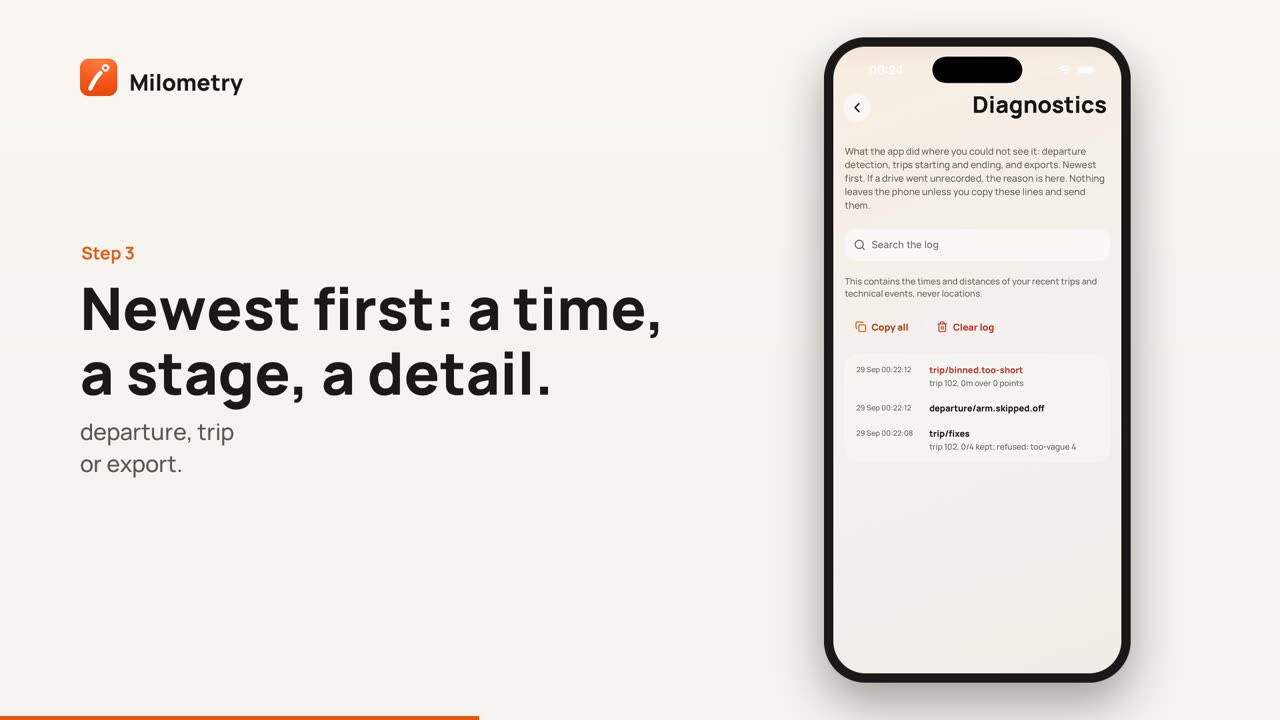
The newest line is at the top. Each line has a time, a stage and sometimes a short detail. The stage says which part of the app wrote it:
- departure/ lines are about noticing a drive: the circle being set around where you parked, the phone reporting that you left it, and a trip starting, or the reason it did not.
- trip/ lines are about a drive in progress: why it ended, how it was saved, or whether it was thrown away as too short.
- export/ lines are about backups and synced files written in the background.
The names are written for whoever is fixing a problem, so they are short and technical. You do not need to understand every line. A few are easy to spot: a line with started means a trip began, saved means it was kept, and a line with refused, failed or skipped usually explains a missing drive.
Use Search the log to find a word, such as saved, or a time.
3. Send it to us
If a drive went unrecorded or something looks wrong:
- Tap Copy all. The whole log goes on the clipboard.
- Paste it into a message on our contact page, or into an email, with a line about what happened and roughly when.
It tells us whether your phone reported the departure and the app missed it, or whether the phone never reported it at all. Those are different faults with different fixes.
What is in it, and what is not
The log keeps the times and distances of your recent trips and technical events. It does not record where you were: it notes how far something moved rather than a position. It stays on your phone until you copy it, and only the most recent lines of each kind are kept.
To empty it, tap Clear log and confirm. Nothing else is affected. Reset also deletes it, see Reset and start again.
If something is not right
- The screen does not open. Tap faster: the ten taps need to come without a pause of three seconds or more.
- It says Nothing recorded yet. Departure detection is off, or no drive has happened since the log was cleared. Turn on Auto-record or Ask me afterwards in Settings → Tracking and take a drive.
- A drive is missing. Once you have read the log, Fixing missed drives shows how to add the journey back.

