 Milometry
Make sure Android records your drives
The phone settings that quietly stop automatic recording on Android, and how to check each one.
General information, not advice. Written as general information on 28 September 2026. Details change, so check the official source or a qualified professional before you rely on it. This is not legal, tax or financial advice.
If Milometry is not starting your drives by itself on Android, the cause is usually not the app deciding to skip them. It is Android deciding the app should be asleep, and doing it without telling either of you. The switch still reads as on, the permission still looks granted, and nothing happens.
This page goes through the things to check, most likely first. It takes about five minutes, once. It is for Android only: an iPhone wakes the app for a departure on its own terms, so none of these settings apply there.
Why Android is different
Milometry watches a circle around wherever you parked and starts recording when you leave it. It also listens for the phone deciding it is in a moving vehicle. Both are handled mostly by the phone rather than by the app, so nothing records while your car sits on the drive. That is the point: an app that ran GPS all day to wait for a drive would drain your battery.
The price of that bargain is that Android's battery-saving features are, from a certain angle, designed to stop exactly this working.
1. Choose how it records
Open Settings → Tracking in Milometry. Under Departure detection there are three choices:
- Off records only when you tap Start trip.
- Ask me afterwards records by itself, then asks "Keep this trip?" once you have parked.
- Auto-record records by itself and puts the drive straight into the Classify tab.
With Auto-record chosen, a switch called Never miss a drive appears below. It watches for movement itself instead of waiting for Android to report it, and it keeps working with no signal. It costs a permanent notification and a little more battery. It is on by default, and it is the best single thing you can do on a phone that misses drives, although no setting can promise every drive.
In versions before 1.1.0, Ask me afterwards was called Remind me, and it asked as you pulled away. It now waits until you have parked.
2. Look for the warning on the Track screen
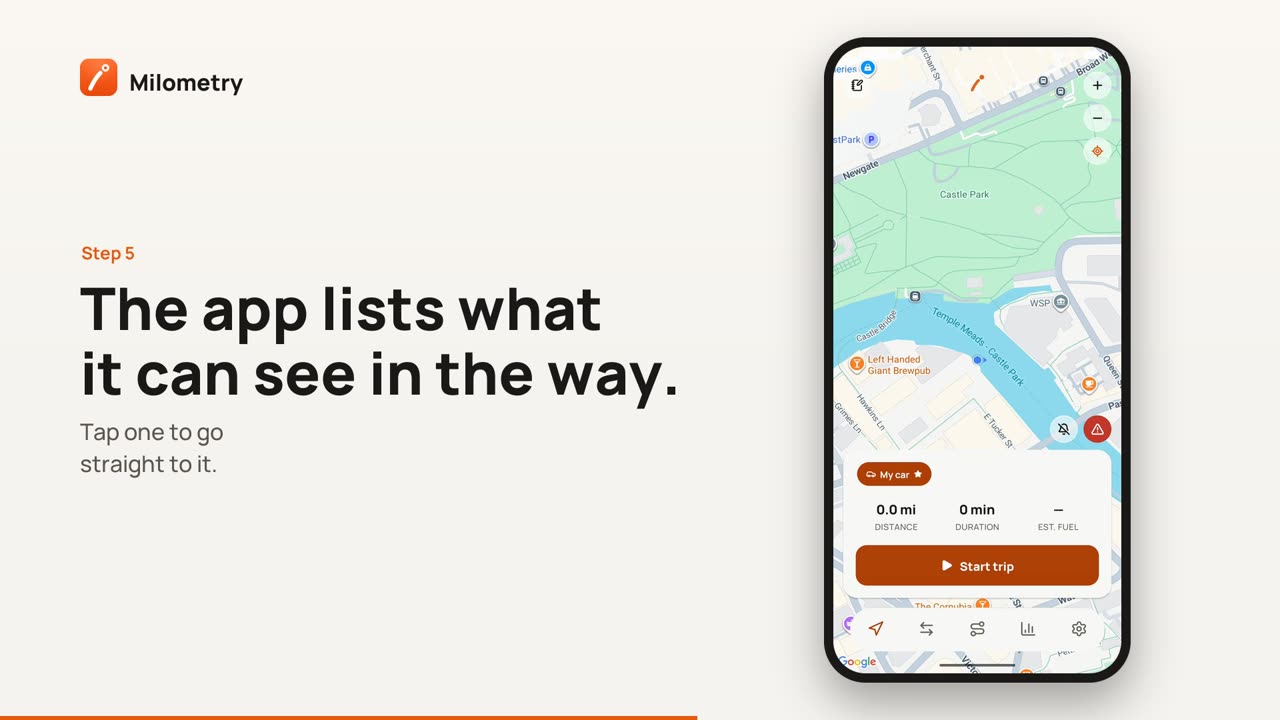
If Milometry can see a setting in the way, a badge appears at the bottom right of the map on the Track screen. Tap it to open Drives may not be recorded, which lists each problem it found. Tap one to go straight to the right place in your phone's settings.
Most of the same warnings also show under Departure detection in Settings → Tracking. The steps below cover what they mean, and a few the app cannot see for itself.
3. Keep Wi-Fi on, even if you never connect
This is the one nobody guesses. Android works out where the phone is partly from the Wi-Fi networks it can see, whether or not it joins any of them. Turn Wi-Fi off completely and it falls back to mobile masts, which place you within a few hundred metres at best.
The circle Milometry watches has a radius of 120 metres, widening to 500 metres when the app can see that positioning is poor. A phone that only knows where it is to within a few hundred metres may never notice you leaving it.
What to do: leave Wi-Fi switched on when you are out. If you would rather not, open Settings → Location → Location services → Wi-Fi scanning and leave that on instead. Scanning alone is enough, and it does not connect you to anything.
4. Battery: set Milometry to Unrestricted
Android puts apps to sleep when it decides they are not being used, and a sleeping app can miss the moment you drive away. There is a trap here for a mileage app: the better automatic recording works, the less you open it, and an app you never open looks to Android like one you do not want.
What to do: Settings → Apps → Milometry → App battery usage → Unrestricted. "Optimised" is often not enough, and "Restricted" stops background recording outright.
5. Location: Allow all the time, and precise
Two separate controls, and both are needed.
Allow all the time is not the same as "While using the app". Milometry has to notice a departure while you are not looking at your phone.
Use precise location is a separate switch beside it. Approximate location rounds your position to something like a neighbourhood, far wider than the circle being watched.
What to do: Settings → Apps → Milometry → Permissions → Location, then choose Allow all the time and turn Use precise location on.
6. Do not swipe the app away
Swiping Milometry out of your recent apps is not like closing a window. On many phones it tells Android you want the app stopped, and a stopped app hears nothing until you open it again by hand.
What to do: leave it in the recents list. It costs very little while you are parked. If you have already swiped it away, open it once and it sets itself up again.
7. Unused app settings, cleaners and battery savers
Android removes permissions from apps that go unused for a few months. On most phones the switch is Settings → Apps → Milometry → Pause app activity if unused. On newer versions of Android it is called Manage app if unused, under Unused app settings. Turn it off.
Anything that promises to free memory, boost battery or clean your phone works by stopping other apps, and some manufacturers build one in. If you have one, add Milometry to its protected or ignore list.
After changing anything
Open Milometry once. Changing these settings does not by itself put the watch back; opening the app does. Then drive. The first journey after a change is the test.
If it is still not working
Milometry keeps a record of what it tried and what stopped it. Open Settings → About Milometry, then tap the Milometry logo at the top ten times. The Diagnostics screen opens with every step, newest first. Tap Copy all and send it to us at milometry.com/contact.
It tells us whether your phone reported the departure and the app missed it, or whether the phone never reported it at all. Those are different faults with different fixes.
If a drive did slip through, Fixing missed drives shows how to find it and add it back.
Sources
- App standby buckets, Android Developers
- App hibernation and permission auto-reset, Android Developers
- Optimise Doze and App Standby, Android Developers
- Detect when users start or end an activity, Android Developers

