 Milometry
iPhone location and background settings
The iPhone settings that decide whether Milometry can notice you driving away, and what the app shows when one of them is in the way.
Chapters
Transcript
General information, not advice. Written as general information on 28 September 2026. Details change, so check the official source or a qualified professional before you rely on it. This is not legal, tax or financial advice.
On iPhone, Milometry watches a small circle around where you parked, and iOS wakes the app when you leave it. There is much less to set up than on Android, but a few iPhone settings still decide whether that works. This page goes through each one, and then shows what the app tells you when something is wrong.
Everything here applies when Auto-record or Ask me afterwards is chosen in Settings → Tracking. With recording set to Off, the app only uses location while a trip you started is recording.
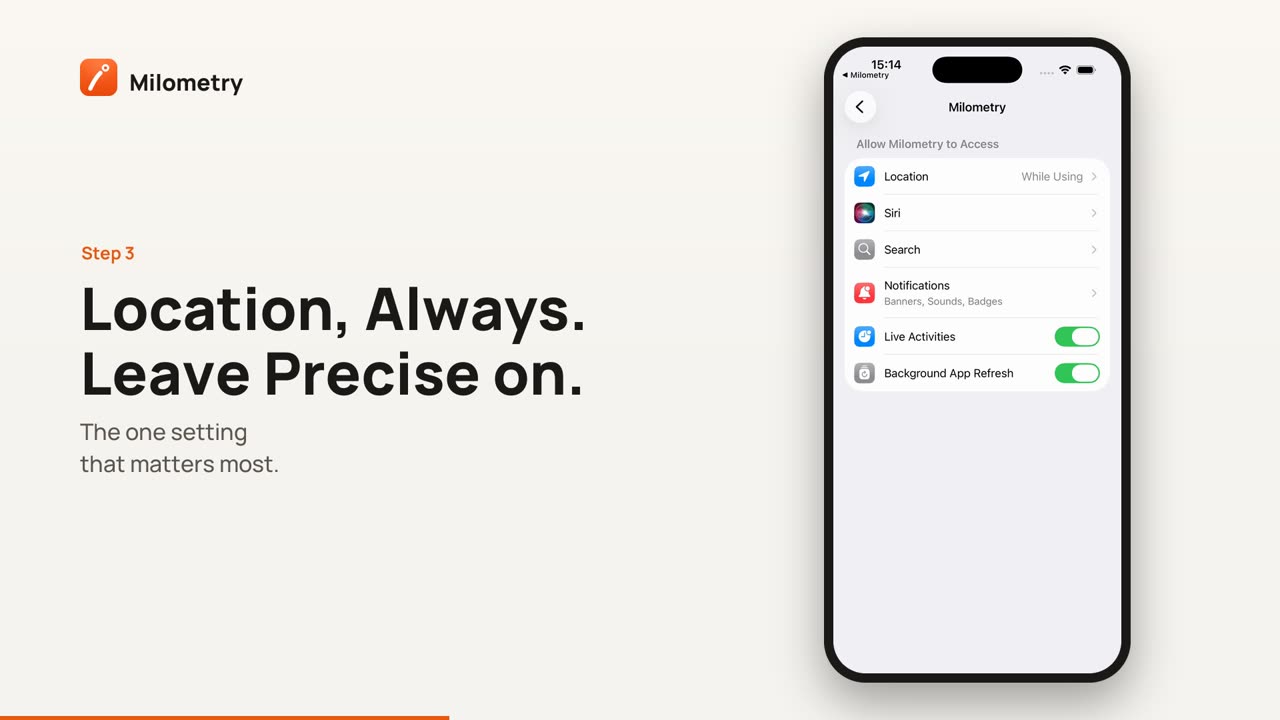
1. Location: Always
This is the one that matters most. Without it, nothing starts by itself.
- Open the iPhone Settings app.
- Tap Privacy & Security, then Location Services.
- Check Location Services is on at the top, then scroll down and tap Milometry.
- Choose Always.
While Using the App is enough to record a trip you start yourself, but not to notice you leaving while the app is closed. Apple's own description of Always is that it allows access to your location even when the app is in the background, which is exactly what departure detection needs.
2. Precise Location
On the same screen, below the list, is a Precise Location switch. Leave it on.
With it off, iPhone shares only an approximate position with the app. The circle Milometry watches around your parked car is small, and an approximate position is too coarse to tell when you have left it.
If it is off while Auto-record or Ask me afterwards is on, the app shows a warning (see below). Versions before 1.1.0 do not warn about this on iPhone, so check it by hand once.
3. Notifications
Milometry records without being opened, and tells you when a drive starts and when it has been saved. If notifications are blocked, it still records, but you have no way of knowing.
Open iPhone Settings → Notifications → Milometry and turn on Allow Notifications. Which reminders you get is then up to you, in Settings → Notifications inside the app.
4. Do not swipe the app away
The Tracking screen, under Keeping recording alive, says it plainly: Milometry keeps recording with the screen off and while other apps are open, and the one thing that stops it is swiping the app away in the app switcher.
You do not need to close it. Between trips it is not recording, and watching the circle costs very little. If you have swiped it away, open it once and leave it in the switcher.
If it happens in the middle of a drive, a notification arrives within a few minutes and the trip so far is kept. Once you have parked, open Milometry and it offers to carry on recording, save what it has, or bin it.
5. Low Power Mode
Apple says Low Power Mode reduces background activity to make the battery last. Milometry's own position, on its Battery screen, is that recording a drive carries on in Low Power Mode and everything else waits.
To see whether it is on, open Settings → Battery inside Milometry. The screen shows LOW POWER MODE when it is. If drives go missing on days the phone was in Low Power Mode, that is the first place to look. You can turn it off in iPhone Settings → Battery.
6. Background App Refresh
Background App Refresh is a separate iPhone switch in Settings → General → Background App Refresh. Milometry does not check it and does not warn you about it. If Milometry appears in that list and drives are being missed, turning it on for Milometry is a harmless thing to try.
What the app shows when something is in the way
A red warning button on the map. On the Track tab, a red button with a triangle appears when the app can see a problem. Tap it to open Drives may not be recorded. On iPhone it can list three things:
- Location is not allowed all the time. This one stops recording by itself. Tap it and Milometry's page in iPhone Settings opens; tap Location and choose Always.
- Location is set to approximate. Precise Location is off, so iPhone does not watch the circle around your car. Tap it, tap Location and switch on Precise Location.
- Notifications are switched off. Recording still works, but silently. Tap it to go to the same page and turn notifications on.
A message when you choose a mode. If you tap Auto-record or Ask me afterwards without location allowed all the time, the app says Background location needed and the option does not switch on.
A card on the Track tab. If automatic recording has been on for a while and has started nothing, while you have been logging drives by hand, the Track tab shows Automatic recording has not started a trip. Tap it to go to Settings → Tracking.
If it is still not working
Check the dot on Settings → Tracking is on Auto-record or Ask me afterwards, then take a short drive to test. Fixing missed drives covers what to do about a journey that was not recorded.
Sources
- Turn Location Services and GPS on or off on your iPhone, Apple Support
- Control the location information you share on iPhone, Apple Support
- Use Low Power Mode to save battery life on your iPhone or iPad, Apple Support

