 Milometry
Reset and start again
Delete what Milometry holds on your phone and start from scratch, and know which copies Reset cannot reach.
Chapters
Transcript
General information, not advice. Written as general information on 27 September 2026. Details change, so check the official source or a qualified professional before you rely on it. This is not legal, tax or financial advice.
Selling the phone, handing it on, or simply starting over? Reset & start again deletes what Milometry holds on this phone and takes you back to the welcome screens. We cannot do this for you, because your data is not held by us, so this is the way to do it.
1. Take a backup first, if you might want it
There is no undo. If there is any chance you will want your trips again, go to Settings → Export & sync and save a Full backup (JSON) somewhere safe first. See Backups and auto-export.
2. Reset
- Open the Settings tab and scroll to the bottom.
- Tap Reset & start again (in red).
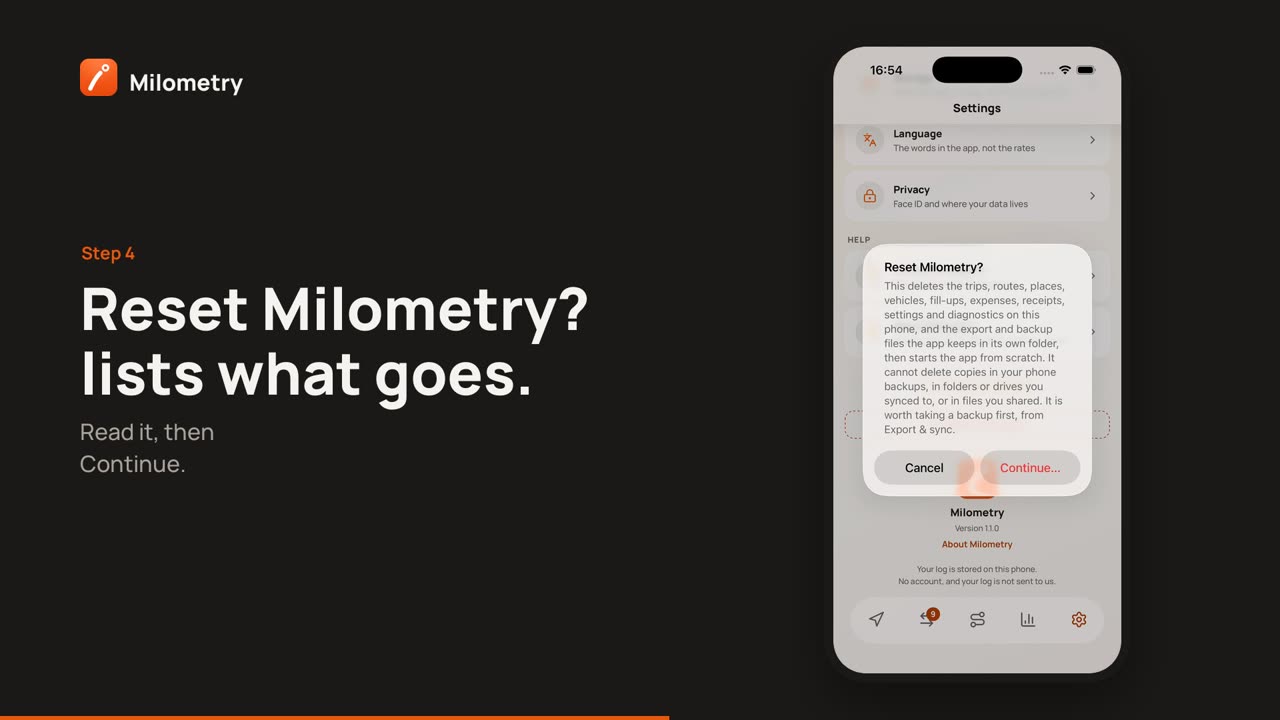
- Reset Milometry? lists what will be deleted. Tap Continue….
- Really delete everything? asks once more. Tap Delete everything, or Keep my data to back out.
- The app starts again from the welcome screens.
What Reset deletes in 1.1.0
- your trips, routes, places, vehicles, fill-ups, expenses, receipt photos, vehicle photos and settings;
- the diagnostics log;
- the export and backup files the app wrote to its own folder. On iPhone, that is the files in On My iPhone → Milometry whose names start with "Milometry", such as Milometry Backup.json. Files you put there yourself are left alone;
- temporary copies of exports, PDFs and share images;
- the network drive password and the backup key saved on the phone;
- on iPhone, the link to the sync folder you picked;
- notifications already delivered.
It also stops any recording and background watching, and compacts the database so that deleted records do not linger in the file.
What Reset cannot reach
Reset works on this phone's copy of Milometry. It cannot remove copies that are somewhere else:
- Your phone's backups. An iCloud or computer backup of your iPhone, or Google's automatic backup on Android, may still hold the app's data.
- Folders and drives you synced to. Files in a cloud folder, Google Drive or your network drive stay there. Delete them there.
- Files you shared. A CSV, PDF or backup you sent to someone, or saved elsewhere, is theirs or yours to delete.
- On Android, the folder permission. Reset makes the app forget the sync folder you picked, but Android keeps the app's permission for that folder until you delete the app.
- Cookies from earlier versions. Cookies that versions before 1.1.0 let websites store inside the app are not cleared by Reset.
Deleting the app instead
Deleting the app removes its data from the phone, with two exceptions worth knowing:
- On iPhone, the keychain can keep the saved network drive password and backup key after the app is deleted. Use Reset first if you want those gone too.
- On Android, Google's automatic backup may keep a copy of the app's data and put it back if you install the app again.
If something is not right
- Reset failed. Try again. If it keeps failing, deleting the app removes its data from the phone.
- In versions before 1.1.0, Reset did not delete the diagnostics log, the export and backup files in the app's own folder, temporary copies of exports, delivered notifications or, on iPhone, the link to the sync folder. If you reset on an earlier version, delete those files in the Files app, or delete the app.

