 Milometry
Storage, and cleaning up old records
See what Milometry is using on your phone, free up space without changing a figure, and delete whole months when you really mean to.
Chapters
Transcript
General information, not advice. Written as general information on 27 September 2026. Details change, so check the official source or a qualified professional before you rely on it. This is not legal, tax or financial advice.
A mileage log is mostly small: distances, dates and money. What takes up room is the pictures, meaning receipt photos, vehicle photos and the route lines drawn on the map. The Storage screen shows where the space has gone and gives you two kinds of clean-up: ones that take away detail but leave every figure the same, and one that deletes whole months of trips.
Make a backup before you clean anything. Most of what this screen removes cannot be brought back from inside the app.
1. Back up first
- Open the Settings tab and tap Export & sync.
- Under Backup & restore, tap Full backup (JSON).
- Save the file somewhere off the phone, such as your cloud storage or a computer.
The backup holds your trips, including their route lines, your expenses and their amounts, fuel, places and settings. It does not hold the receipt photographs themselves, because they are separate files. If you keep an auto-export folder, Milometry can copy receipts there as well. See backups and auto-export.
2. Open the Storage screen
- Go back to the Settings tab.
- Tap Storage.
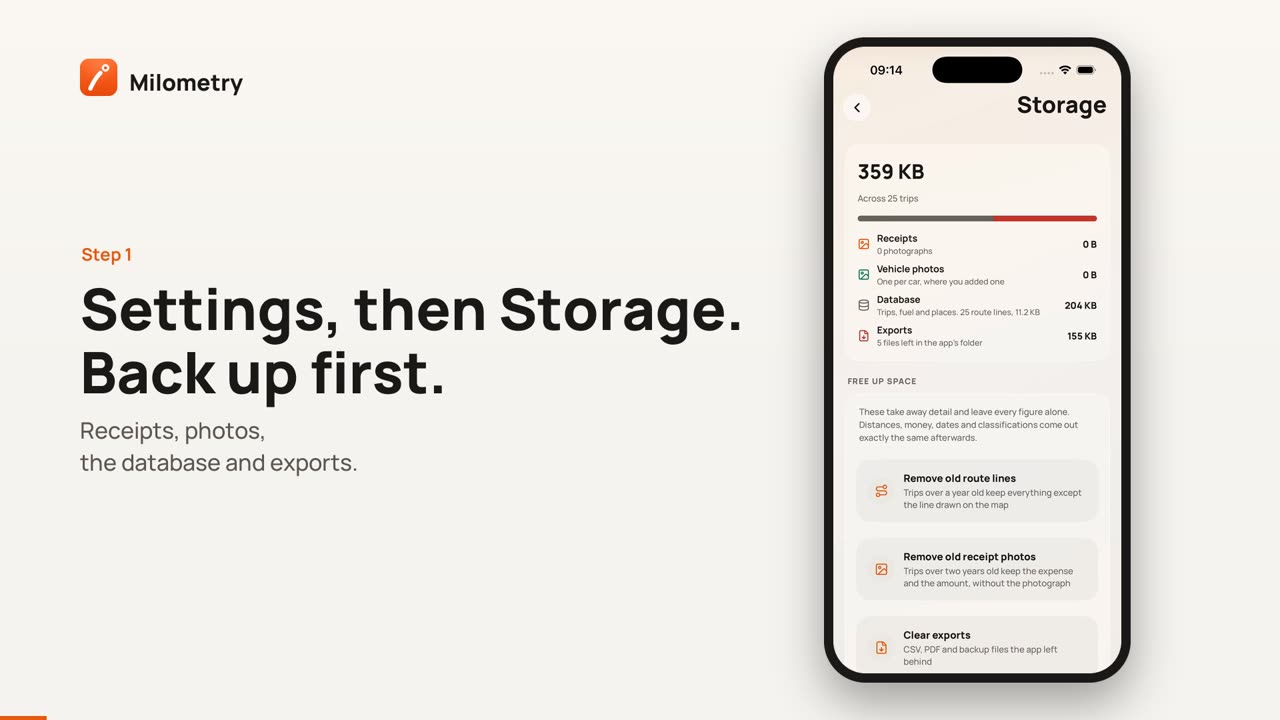
At the top is the total Milometry is using and how many trips that covers, with a coloured bar showing the split. Underneath:
- Receipts: how many receipt photos, and their size.
- Vehicle photos: one per car, where you added one.
- Database: your trips, fuel and places, and how much of that is route lines.
- Exports: CSV, PDF and backup files the app has left in its own folder.
3. Free up space without changing a figure
Under FREE UP SPACE are clean-ups that remove detail only. Distances, money, dates and classifications come out exactly the same afterwards.
- Remove old route lines: trips over a year old keep everything except the line drawn on the map.
- Remove old receipt photos: trips over two years old keep the expense and its amount, without the photograph.
- Clear exports: deletes CSV, PDF and backup files the app wrote into its own folder. This row only appears when there are some. Anything you already saved or shared elsewhere is untouched.
Tap one. Milometry tells you how many trips or photos it will affect and roughly how much space it will free, with the real numbers in the question. Tap Free up to go ahead (or Clear for exports), or Cancel. If there is nothing old enough, it says Nothing to remove.
The total at the top updates when it is done.
4. Delete a whole month
Under DELETE BY MONTH is a list of every month that has trips, with how many and how much space each takes.
This one is different. It deletes the trips themselves, so your claim for that month changes.
- Find the month and tap the bin icon on its right.
- Milometry shows Delete a month, with the month and the number of trips. It warns that their expenses and receipts go too, and that this cannot be undone.
- Tap Delete, or Cancel to keep them.
Deleted months do not go to the Bin filter on the Trips tab. They are gone from the app.
Only do this for a period you have finished with, and export it first if you might need it, for example with the year's claim export in claiming and exports.
What can and cannot be recovered
| What you cleaned | Kept on the phone | How to get the rest back |
|---|---|---|
| Old route lines | The trip and all its figures | Only by restoring a backup made before |
| Old receipt photos | The expense and its amount | Only from a copy you kept, such as an auto-export folder |
| Exports | Everything in the app | Export again at any time |
| A deleted month | Nothing from that month | Only by restoring a backup made before |
Restoring a backup replaces everything in the app with what was in the backup. Anything recorded after that backup was made would be lost, so restore to bring back a deleted month only if you are sure, and make a fresh backup first. See moving to a new phone for the restore steps.
If something is not right
- The total barely moved after deleting a month. Most space is often in receipt photos, not trips. Check the Receipts row.
- Nothing to remove. Your trips are not old enough yet: route lines need to be over a year old and receipt photos over two.
- You deleted the wrong month. If you have a backup from before, it can be restored. Without one, the trips cannot be brought back.

