 Milometry
Moving to a new phone
Take your trips with you: back up on the old phone, restore on the new one, then re-enter the passwords that stay behind.
Chapters
Transcript
General information, not advice. Written as general information on 27 September 2026. Details change, so check the official source or a qualified professional before you rely on it. This is not legal, tax or financial advice.
Your trips live on your phone, not on a server of ours, so moving them is something you do with a backup file. It takes a few minutes. The one surprise is that a couple of secrets stay on the old phone on purpose, and you type them in again on the new one.
On the old phone
- Open Settings → Export & sync.
- Under Backup & restore, tap Full backup (JSON).
- Save the file somewhere the new phone can reach: iCloud Drive, Google Drive, or send it to yourself.
- If you set a backup passphrase, make sure you know it. You need it to open the file on the new phone.
- If you back up to a network drive, make sure you know its address, username and password.
If auto-export is on with a cloud folder, Milometry Backup.json is already in that folder and you can use it instead. The copy in On My iPhone → Milometry stays on the old iPhone, so it is not enough on its own.
Receipt photos are not inside the backup file. On Android, if auto-export writes to a folder, they are copied there. On iPhone, keep the originals in your photo library.
On the new phone
- Install Milometry and go through the first setup. What you set here is replaced in a moment.
- Open Settings → Export & sync and tap Restore from backup….
- Pick the backup file.
- If the file is sealed, This backup is sealed asks for the passphrase. Type it and tap Restore from backup….
- Read the summary: how many trips, vehicles and fill-ups the backup holds, and the months it covers. Everything currently on this phone is replaced by it.
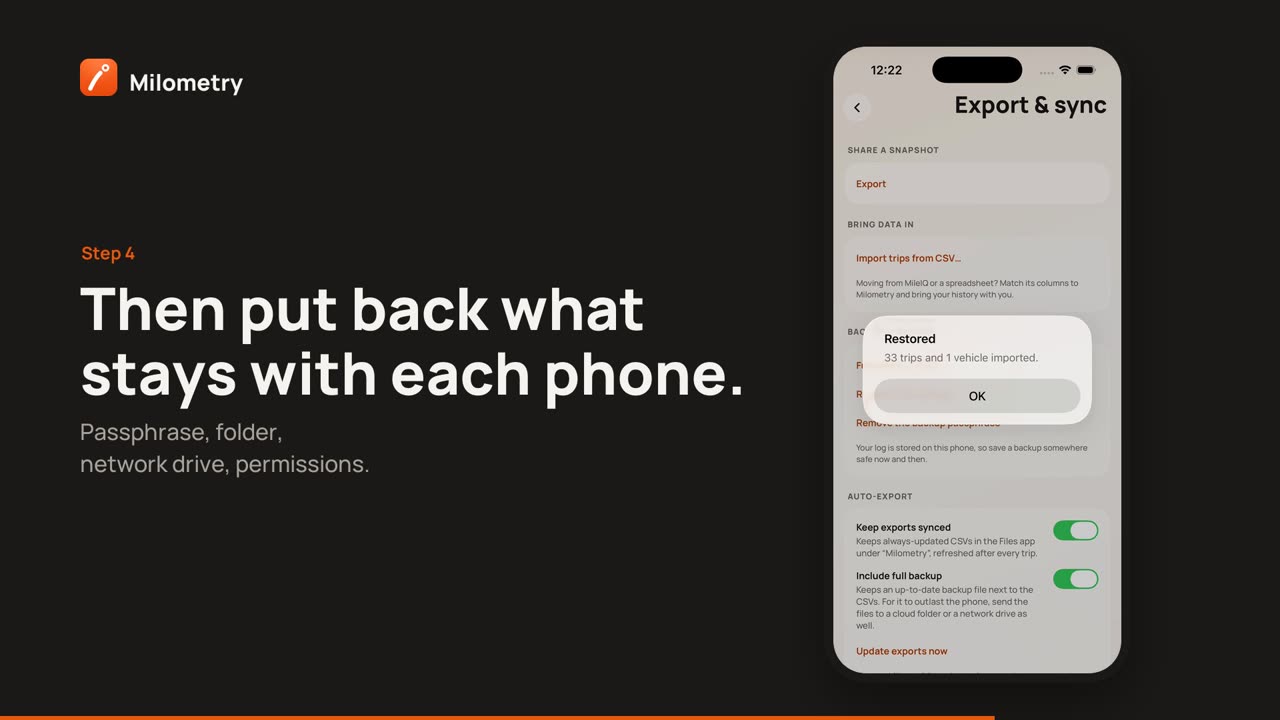
- Tap Replace everything. Restored says how many trips and vehicles came in.
Your trips, routes, vehicles, fill-ups, places, expenses, rates and settings are back.
Then put back what stays behind
Some things are kept for one phone only, in its secure storage (the keychain on iPhone, the Android Keystore on Android), and are left out of backups on purpose. They do not move to a new phone, so enter them again:
- Your backup passphrase. Under Backup & restore a note says you set a backup passphrase on another phone. Tap Set a backup passphrase and enter it again. Until you do, the app holds its backups back rather than write them unsealed. Your CSV exports carry on, and the auto-export status shows why the backup did not go.
- Your network drive. Its password, address and username are not in the backup. Under Network drive (NAS), tap Set up backup and go through the steps again.
- Your sync folder. Under Auto-export, choose the folder again: Choose cloud folder… on iPhone, Change sync folder… on Android. Access to a folder is given to one phone, not carried in the backup.
- Permissions. Location, notifications, motion and the others are granted per phone. Work through first setup on iPhone or first setup on Android to check them.
If you use your phone's own transfer
Moving with an iCloud or computer backup on iPhone, or Google's backup on Android, can bring Milometry's data across too:
- On Android, Google's automatic backup includes the app's database and photos, so trips and settings can come back when you set up the new phone. It leaves out the saved passwords and keys.
- On iPhone, an iCloud or computer backup includes the app's data as iOS decides. The saved passwords and keys do not move to a different phone.
Either way, re-enter the passphrase and network drive password as above. Your own backup file is still worth making first, because you can see exactly what it holds.
If something is not right
- "That passphrase does not fit this backup." Each file is sealed with the passphrase that was set when it was written. Try an older passphrase, or a different copy.
- Restore failed. The file may be incomplete or not a Milometry backup. If auto-export was on, try one of the dated monthly copies, such as Milometry Backup 2026-08.json.
- The old phone is gone. Look for Milometry Backup.json in the cloud folder or network drive auto-export was writing to.
- In versions before 1.1.0, the network drive's address and username were included in the backup file.

