 Milometry
First setup on iPhone
Every screen from first opening Milometry to your first recorded drive, including the two location prompts iPhone shows.
Chapters
Transcript
General information, not advice. Written as general information on 27 September 2026. Details change, so check the official source or a qualified professional before you rely on it. This is not legal, tax or financial advice.
This walks through a fresh install on iPhone, one screen at a time. By the end, Milometry will record your drives by itself and you will have seen what happens when one ends. Allow about five minutes, and do it before you set off rather than in the car.
1. The welcome screens
Open Milometry. Six orange screens explain what it does: recording, sorting, the claim, privacy and reminders. Swipe or tap Next to move through them, or Skip to jump to the last one.
The last screen has a Turn on reminders button. Tap it and iPhone asks whether Milometry may send notifications. Tap Allow. Notifications are how the app tells you a drive has started or been saved by itself; with them off, it all happens in silence.
Tap Set up.
2. Whose rules?
This screen chooses the rates your claims are worked out under. The Country or scheme picker starts on the one that matches your iPhone's region. Check the summary underneath, which spells out the rate and when your claim year starts.
If your employer pays something different, tap These are not my rates and change the figures, then Done adjusting. Everything here can be changed later in Settings → Mileage scheme.
Tap Next: your car.
3. Your car, your numbers
Type a Vehicle name. The two fuel fields are optional: fill them in if you know them and you get cost estimates from the first trip.
Tap Continue. iPhone now asks whether Milometry can use your location, with three buttons. Tap Allow While Using App, and leave Precise switched on at the top of the prompt. Step 5 asks for the rest.
If you tap Don't Allow by mistake, the app says Location not granted. You can still look around, and you can fix it later in iPhone Settings.
4. Five things worth doing
You land on the Track tab, with a map of where you are. A card called Five things worth doing appears over it. Every item is optional, and each one has a button that takes you to the right place.
Tap Set up next to Let it record by itself. That opens Settings → Tracking.
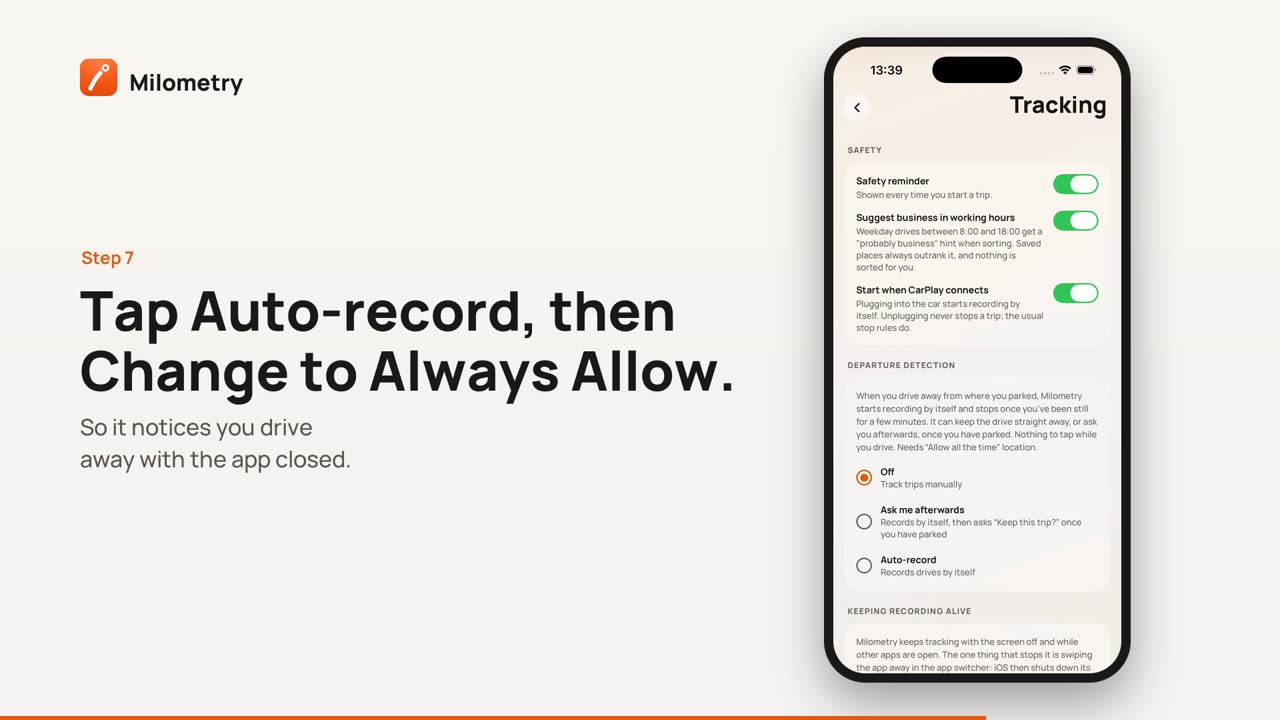
5. Turn on Auto-record
Under Departure detection, tap Auto-record.
iPhone now shows a second location prompt, asking whether to let Milometry use your location even when you are not using the app. Tap Change to Always Allow. This is the permission that lets Milometry notice you driving away while the app is closed, and nothing starts by itself without it.
If the prompt does not appear, or you chose Keep Only While Using, the app shows Background location needed. Open iPhone Settings → Privacy & Security → Location Services → Milometry, choose Always, and check Precise Location is on. Then go back to Milometry and tap Auto-record again.
When the dot sits next to Auto-record, more sections appear underneath for the finer points, such as how long you have to be parked before a trip ends. The defaults suit most people.
6. Check nothing is blocking it
Go back to the Track tab. If a red warning button with a triangle shows on the map, something on the phone is still in the way. Tap it: the sheet lists each problem, and tapping one opens Milometry's page in iPhone Settings. If there is no red button, there is nothing to fix.
7. Take a drive
Put the phone away and drive. Milometry needs nothing from you on the road.
Soon after you set off, a notification may say Trip recording started. When you have arrived and been parked for a few minutes, the trip ends by itself and a notification asks Business or personal? Answer it once you have parked, from the notification or later on the Classify tab. The trip is on the Trips tab either way.
If something is not right
- No drive appeared. Open Settings → Tracking and check the dot is on Auto-record. Then read iPhone location and background settings, which covers each setting that can stop it.
- You swiped Milometry away in the app switcher. The app's own help says this is the one thing that stops it on iPhone. Open it again and leave it in the switcher.
- You would rather be asked before each trip is kept. Choose Ask me afterwards instead. Choosing how it records explains the difference.

