 Milometry
Choosing how Milometry records
Auto-record, Ask me afterwards or Off: what each one does, what it asks your phone for, and which to pick.
Chapters
Transcript
General information, not advice. Written as general information on 27 September 2026. Details change, so check the official source or a qualified professional before you rely on it. This is not legal, tax or financial advice.
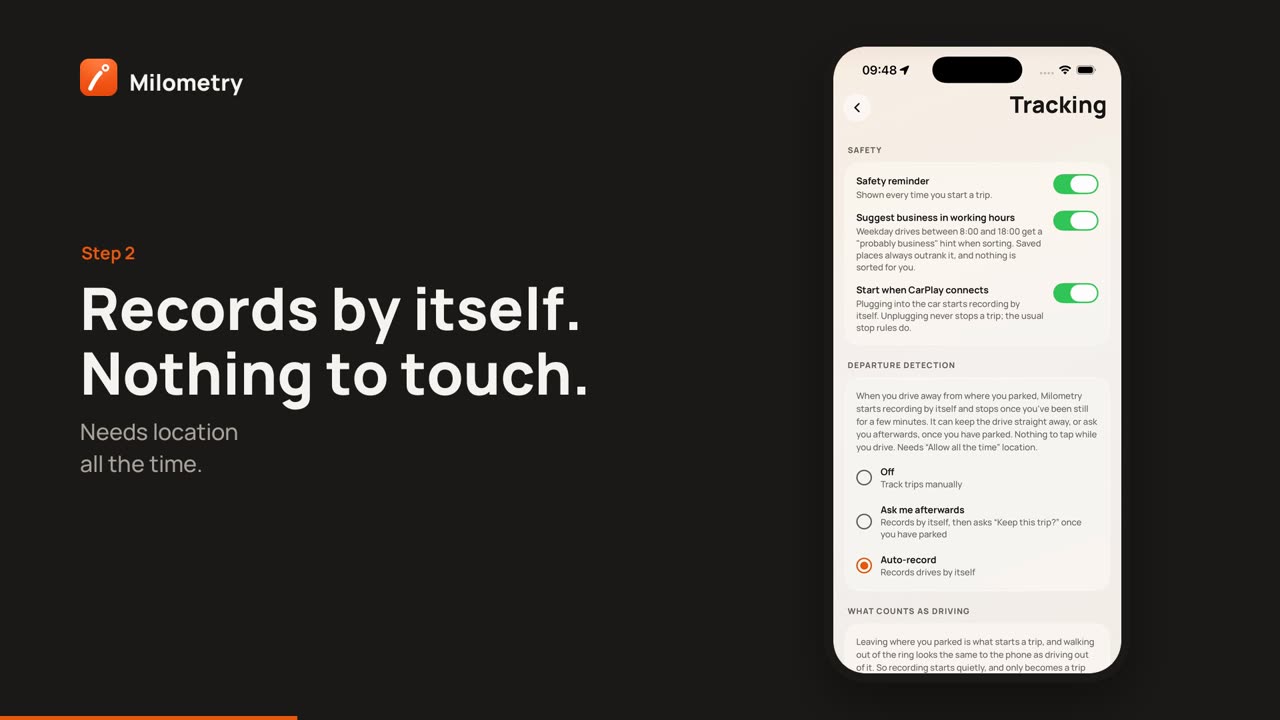
Milometry can start recording when you drive away, or wait for you to press a button. The choice lives in one place, and this page explains the three options so you can pick the one that suits how you drive. For most people it is Auto-record.
Where the choice is
- Open the Settings tab.
- Under Recording a drive, tap Tracking.
- Find Departure detection. The three options sit underneath, and the one with the filled dot is the one in use.
A fresh install starts on Off.
Auto-record
What it does. When you drive away from where you parked, Milometry starts recording by itself. It stops once the car has been still for a few minutes, saves the trip and puts it with your other trips to sort. You do not open the app or touch the phone.
Recording starts quietly and only becomes a trip once you reach driving speed, so walking away from the car does not leave you with a trip to delete. While it is still deciding, the Track tab says Checking whether this is a drive. Nothing is saved unless it is.
What you see. A notification saying Trip recording started once it is sure you are driving, and, after you have parked, one asking Business or personal? with a button for each. Questions with buttons wait until the app thinks you have parked.
What it asks for.
- Location set to all the time (iPhone calls it Always), with precise location on.
- Notifications, so it can tell you what it did.
- On Android, physical activity, which lets the phone's motion sensors report that you are in a vehicle. Recording still works if you decline.
- On Android, the Never miss a drive switch appears under this option, on by default. It adds a permanent notification and uses a little more battery, and it makes recording far more dependable.
Ask me afterwards
What it does. Records exactly like Auto-record, starting and stopping by itself. The difference is at the end: once you have parked, a notification asks Keep this trip? with Keep and Discard.
Discard sends the trip to the bin, where you can restore it from the Bin filter on the Trips tab. If you do not answer, the trip is kept with your other trips to sort.
What it asks for. The same as Auto-record: location all the time, notifications, and on Android physical activity.
Who it suits. People whose phone often travels without them driving, such as on trains or in other people's cars, and who would rather confirm each trip than sort out the odd stray one. If that is mostly trains, quiet mode and travel hours may suit you better.
In versions before 1.1.0, this option was called Remind me, and it sent a notification asking you to start recording as you set off. It no longer asks anything while you are driving.
Off
What it does. Nothing runs between trips. You record a drive by opening the Track tab and tapping Start trip before you set off. A safety card appears first; tap I understand. When you have parked, press and hold Hold to stop.
What it asks for. Location while you are using the app. That is all.
Who it suits. People who only want a handful of specific journeys, or who would rather nothing ran in the background at all. The cost is that any drive you forget to start is not recorded, and you would need to add it by hand.
Which to pick
Choose Auto-record unless you have a reason not to. A mileage log only works if it catches the drives you forget about, and Auto-record is the option that needs nothing from you. Sorting a trip you did not need takes one swipe.
Switching between them
Tap a different option at any time. Moving between Auto-record and Ask me afterwards does not ask for anything again once the permissions are in place. Choosing Off stops everything that watches for departures; trips you have already recorded are not affected.
If something is not right
- You tapped Auto-record and the dot did not move. A permission was declined. The app says which: Location needed or Background location needed. Allow location all the time in your phone's settings, then tap the option again.
- A red box appears under Departure detection. That is Android saying something is getting in the way, such as approximate location or battery optimisation. Tap the box to go to the setting.
- Drives are not being picked up. See iPhone location and background settings or making sure Android records your drives.

