 Milometry
Trip groups, and charging a client for the miles
Put a job, a client or a trip away into one group, read its totals, and work out what to bill at your own rate.
Chapters
Transcript
General information, not advice. Written as general information on 27 September 2026. Details change, so check the official source or a qualified professional before you rely on it. This is not legal, tax or financial advice.
Business and personal is all the tax scheme cares about, but it is rarely all you care about. A group lets you read a set of drives together: one client, one job, a fortnight in Cornwall. You get the totals for just those drives, a CSV and a PDF of them, and, if you bill clients for mileage, the amount to put on the invoice at your own rate.
A group never changes how a trip is classified. A personal drive in a group stays personal, and the trip stays in your main list and your claim exactly as before.
1. Make a group
- Open the Trips tab.
- At the top, tap Groups (next to All trips). If you have none yet, the list says so.
- Tap the round + button in the bottom corner. The New group screen opens.
- Under Details, type a Name, such as the client or the job.
- Add Notes (optional) if you want a reminder of what the group is for.
- If you charge this client for mileage, fill in Charge-out rate per mi (GBP, optional). See step 5 below. You can leave it empty and add it later.
- Tap Create group. The new group opens, empty, ready for journeys.
The unit and currency in the charge-out field follow your country setting, so it may read per km and in another currency.
2. Add journeys to it
There are two ways in. Use whichever suits.
Several at once, from the group.
- On the group's screen, tap Add journeys.
- Scroll or search (Search places, names or notes) to find the drives.
- Tap each drive you want. A tick appears on the right.
- Tap the button at the bottom, which counts them for you, such as Add 3 journeys.
A journey can only be in one group. A drive already in another group says in another group under it, and adding it here moves it.
One at a time, from a trip.
- Open the trip from the Trips tab and scroll down to Add to a group.
- Tap it and choose a group from the list, or tap New group…, type a Group name and tap Create and add.
Once a trip is in a group, that row shows the group's name. Tap Open beside it to go straight to the group, or tap the name to move the trip to another group or choose Remove from group.
3. Read the group's totals
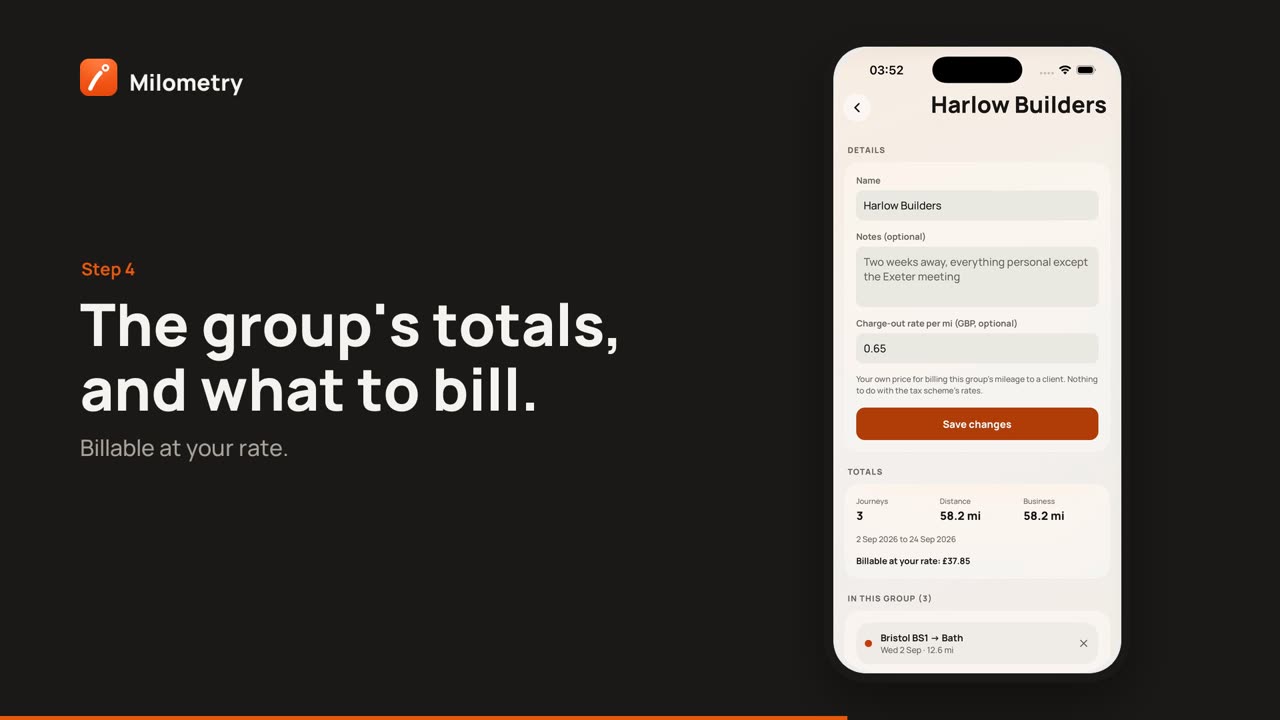
Back on the group's screen, Totals shows:
- Journeys: how many drives are in it.
- Distance: all of them added up, business and personal.
- Business: just the business drives.
- The dates of the first and last drive underneath.
Below that, In this group lists each drive. Tap one to open it. Tap the X on its right to take it out of the group; the trip itself is not touched.
Further down, Analytics shows Claimable (what the business drives in the group earn at your scheme's rates, the same figures each trip shows), the Longest and Average drive, and a bar for each day, split by business and personal. The claimable figure is priced against your whole tax year, so a drive keeps the rate it actually earned rather than being priced as if the group stood alone.
4. Export just this group
Under Export:
- Journeys CSV gives a spreadsheet of the drives in this group only.
- Summary PDF gives a one-document summary of them, with each business drive's claim.
Both open your phone's share sheet, so you can email them, save them to Files or attach them to an invoice.
The group's name also travels with each trip in the full trips CSV and in the claim PDF's Purpose column, so an accounts department can see which job a drive belonged to.
5. Charge the miles out to a client
The charge-out rate is your own price, nothing to do with the tax scheme's rates. If you bill a client, say, 60p a mile, enter 0.60 in Charge-out rate per mi (GBP, optional) and tap Save changes.
Totals then shows Billable at your rate: with the amount.
Two things to know:
- The billable amount uses the group's whole Distance, including any personal drives in it. If a personal drive should not be billed, take it out of the group with the X, or keep a separate group for it.
- Milometry does not make invoices. Copy the billable figure onto your own invoice, and attach the Summary PDF or Journeys CSV as the record behind it.
To change the rate later, edit the field and tap Save changes. The billable amount updates straight away.
6. Rename or delete a group
Edit the Name or Notes at the top of the group and tap Save changes.
To delete it, scroll to the bottom and tap Delete group, then Delete. The journeys in it are kept. Only the group goes.
If something is not right
- A drive is missing from Add journeys. It may already be in this group, or it may be in the bin. Drives in the bin are not offered.
- Claimable shows nothing. Only business drives count. Sort the drives first (see sorting trips), and the figure fills in.
- The billable amount looks too high. Check for personal drives in the group, as they count towards it.

