 Milometry
There-and-back trips
Pair the drive out with the drive home, so each one shows the other and the round trip, without merging anything.
Chapters
Transcript
General information, not advice. Written as general information on 27 September 2026. Details change, so check the official source or a qualified professional before you rely on it. This is not legal, tax or financial advice.
Most business drives are two drives: out to the client, and back again. Milometry records them as two separate trips, because they are. Linking them as a pair keeps both exactly as they are and lets either one show you the other, with the distance for the whole round trip.
Do this once you have parked, from the Trips tab.
What linking changes, and what it does not
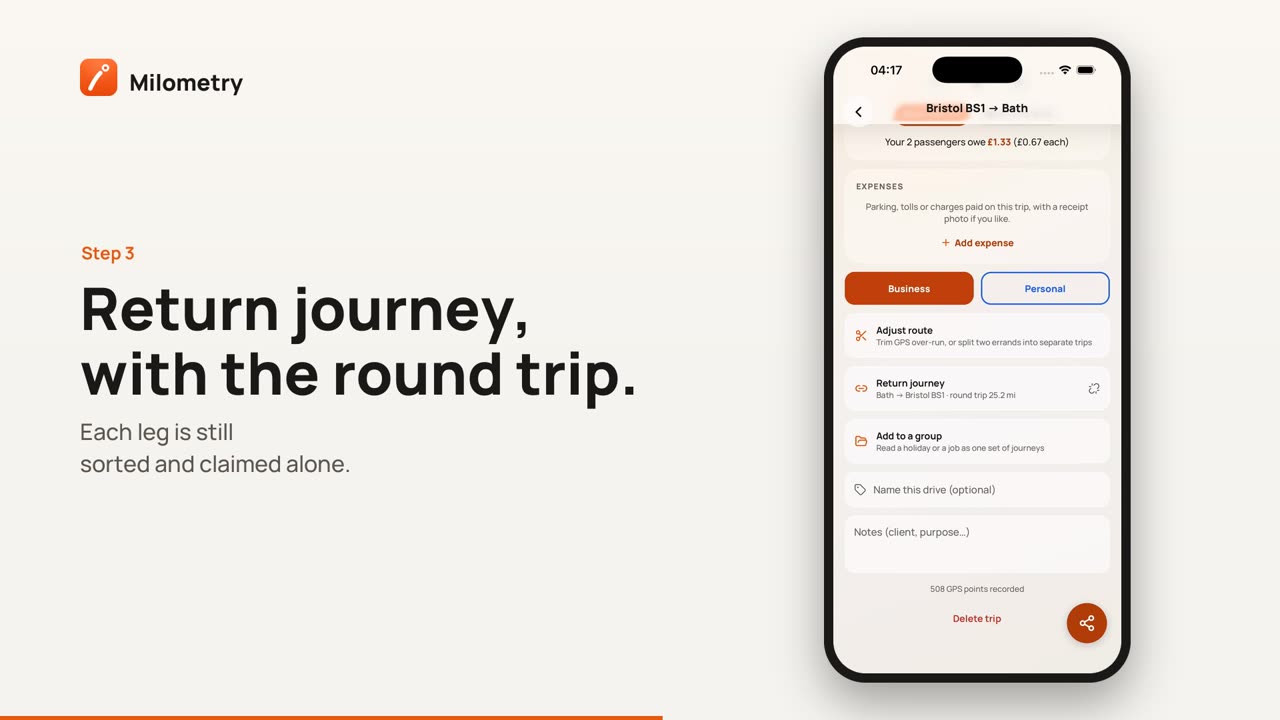
It changes: each trip's screen gains a Return journey row that names the other leg and gives the round trip distance. Tap it to jump between the two.
It does not change: the distance, times, route, classification or claim of either trip. Each leg is still sorted and claimed on its own, and your totals come out the same. Linking is a way of reading the two together.
That is the difference from merging. Merging turns two trips into one and deletes the other, and it cannot be undone. Linking can be undone at any time.
1. When Milometry spots the return leg for you
- Open the drive out from the Trips tab and scroll down past the map and figures.
- If a later drive in the same car, within the same day or so, starts near where this one ended and ends near where it began, a highlighted row says Return leg found, with that drive's name and distance.
- Tap it. Milometry asks Link the return leg?
- Tap Link them, or Not this one if it has guessed wrong.
Milometry only suggests. Nothing is linked until you say so. Coming home a different way is fine: the ends matter more than the exact distance.
2. Linking a journey yourself
If no suggestion appears, or you want a different drive:
- Open one of the two trips and tap Link an existing journey.
- The Link a journey screen lists your other drives in the same car, closest in time first. Search with Search places, names or notes if you need to.
- Tap the other leg.
- Milometry asks whether to pair or merge. Tap Link as pair.
A drive that is already paired with something else says already paired under it. Linking it here moves it into this pair and clears its old one, because a trip can only have one partner.
Only drives in the same car are listed. If the other leg is missing, check that both trips have the same vehicle.
3. Reading a linked pair
Open either trip. The Return journey row shows the other leg's name followed by round trip and the combined distance. Tap the row to open the other leg; its screen shows the same row pointing back.
4. Unlinking
- On either trip, tap the small unlink icon at the right of the Return journey row.
- Milometry asks Unlink these journeys? and reminds you that both trips stay exactly as they are.
- Tap Unlink.
Deleting one of the two trips also unlinks the other.
When the return leg was never recorded
If you drove home but Milometry missed it, there is nothing to link to yet. Tap Add return journey on the drive out: it opens a new trip with the places swapped and the same distance filled in, for you to check and save. See adding a trip by hand.
That new trip is not linked automatically. Once it is saved, open the drive out again and link it as in step 1 or 2.
Pair or merge?
- Link as pair for an out-and-back: two real drives with a stop between them.
- Merge into one only for one drive that was split in two, such as a petrol stop that ended the recording. Merging only works for trips less than 45 minutes apart; for anything further apart, Milometry says Too far apart to merge and suggests pairing instead. More in editing, merging and splitting trips.

