 Milometry
Plan a trip
See roughly how far a journey is and what it could be worth before you set off, and what the Plan screen sends and keeps.
Chapters
Transcript
General information, not advice. Written as general information on 27 September 2026. Details change, so check the official source or a qualified professional before you rely on it. This is not legal, tax or financial advice.
The Plan screen answers one question before a journey: roughly how far is it, and roughly what is it worth at your rates? It is a quick estimate, done before you leave, and it does not record or save anything unless you ask it to start a trip.
1. Open Plan
On the Track tab, tap the notebook button at the top left of the map to open Quick actions, then tap Plan a trip.
The screen opens on a map around where you are. Until your phone reports a position, the card under the map says Waiting for your location….
2. Choose where you are going
There are two ways:
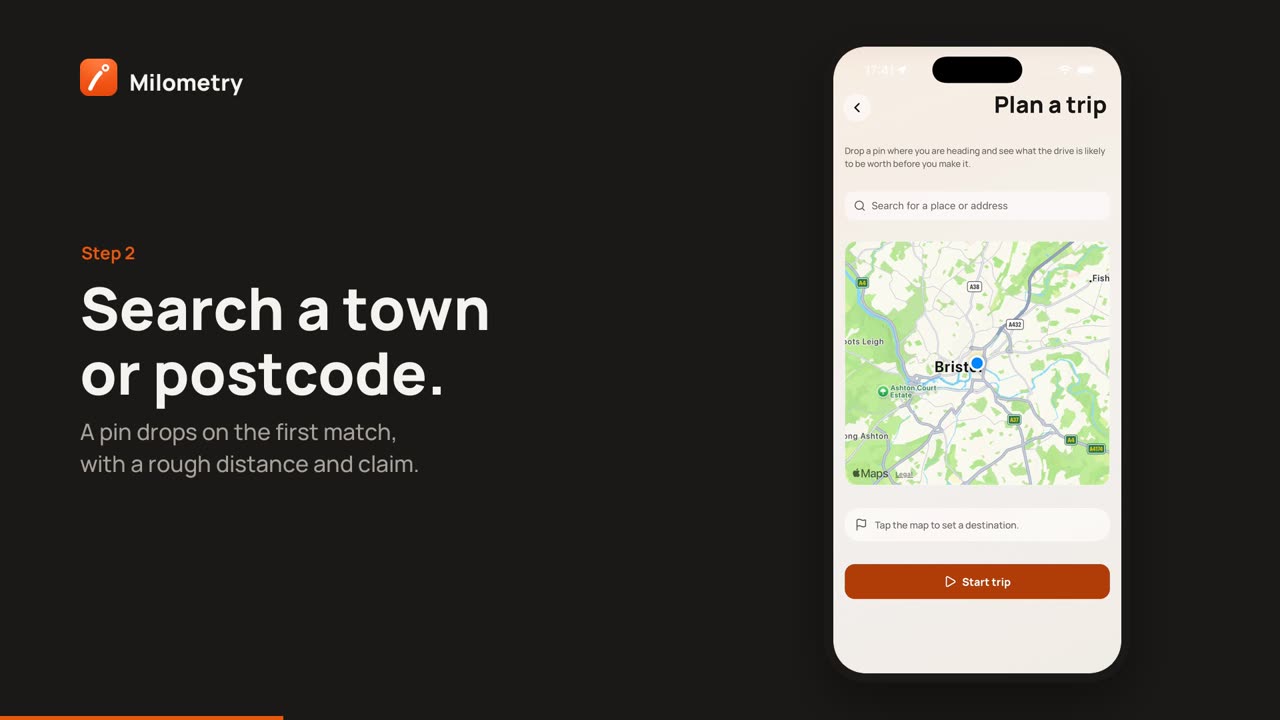
- Search. Tap Search for a place or address, type a town, a postcode or an address, and tap the search key on the keyboard. The map moves to the first match and drops a pin there. If nothing matches you see Nothing found for that. Try the town or postcode, or tap the map instead.
- Tap the map. Tap anywhere to drop the pin. You can drag it afterwards to adjust it.
A dashed line joins where you are to the pin.
3. Read the estimate
The card under the map now shows two figures, each with a ≈ sign in front of it, because each one is approximate:
- Estimated distance: the straight line from you to the pin, multiplied by a typical factor for how roads wind. The real route may be shorter or longer, especially across water, in hills, or along a straight motorway.
- Estimated claim: that distance priced at the first rate band of the mileage scheme you set in Settings → Mileage scheme.
The small print under them says the same thing: By road it will differ. Plan does not show a journey time or a fuel cost. For a fuller picture of one journey, including fuel, passengers and where you are in the year's rate bands, use the claim calculator.
In the UK, the first band is the higher rate for the first 10,000 business miles of the tax year. If you have already driven more than that this year, the real claim for this journey will be lower than Plan shows. Whether a journey counts as business at all is a separate question: ordinary commuting does not.
4. Start the trip, or just close
At the bottom is Start trip. It starts recording straight away, exactly like starting a trip from the Track screen, and takes you back there.
Only tap it before you set off, while you are still parked. If you only wanted the estimate, go back instead. Nothing is recorded, and the destination is not saved as a trip, a place or anything else.
What leaves your phone
Plan does not use a routing service, which is why the distance is an estimate. Two things do go out:
- The search text. What you type into the search box is sent to your phone maker's place lookup, Apple on iPhone and Google on Android, so it can be turned into a spot on the map. Tapping the map instead of searching skips this.
- The map itself. The map is drawn by Apple Maps on iPhone and Google Maps on Android, which load the area you are looking at.
Milometry does not keep your searches.
If something is not right
- It stays on "Waiting for your location…". Milometry needs permission to use your location while the app is open. Check your phone's location settings for Milometry, then go back and open Plan again.
- Search finds nothing. Search needs a connection. Try a shorter search such as the town or postcode, or tap the map.
- The claim looks too high. Plan always uses the first rate band. The calculator uses the rate your next miles will actually be paid at.

