 Milometry
Bring your history from another app
Import trips from a spreadsheet or another mileage app's CSV, match the columns, and let Milometry skip the ones it already has.
Chapters
Transcript
General information, not advice. Written as general information on 27 September 2026. Details change, so check the official source or a qualified professional before you rely on it. This is not legal, tax or financial advice.
If you kept a mileage log somewhere else, you do not have to start the year again. Milometry reads a CSV file from a spreadsheet or another mileage app, lets you say which column is which, and adds the trips to your log.
1. Get a CSV file ready
Export your trips from the old app or spreadsheet as a CSV file and save it somewhere your phone can reach: the Files app, Google Drive, iCloud Drive, or an email attachment you have saved.
A few things make the import smoother:
- One trip per row, with a header row of column names at the top.
- Columns separated by commas. A file that uses semicolons between columns reads as one long column. In a spreadsheet, choose to save as CSV with commas.
- Day before month in dates, such as 27/09/2026, or the year first, such as 2026-09-27. A date written month first is read the other way round, or not at all.
2. Open the importer
- Open Settings → Export & sync.
- Under Bring data in, tap Import trips from CSV….
- Tap Choose CSV file… and pick your file.
The screen shows how many rows it found.
3. Match the columns
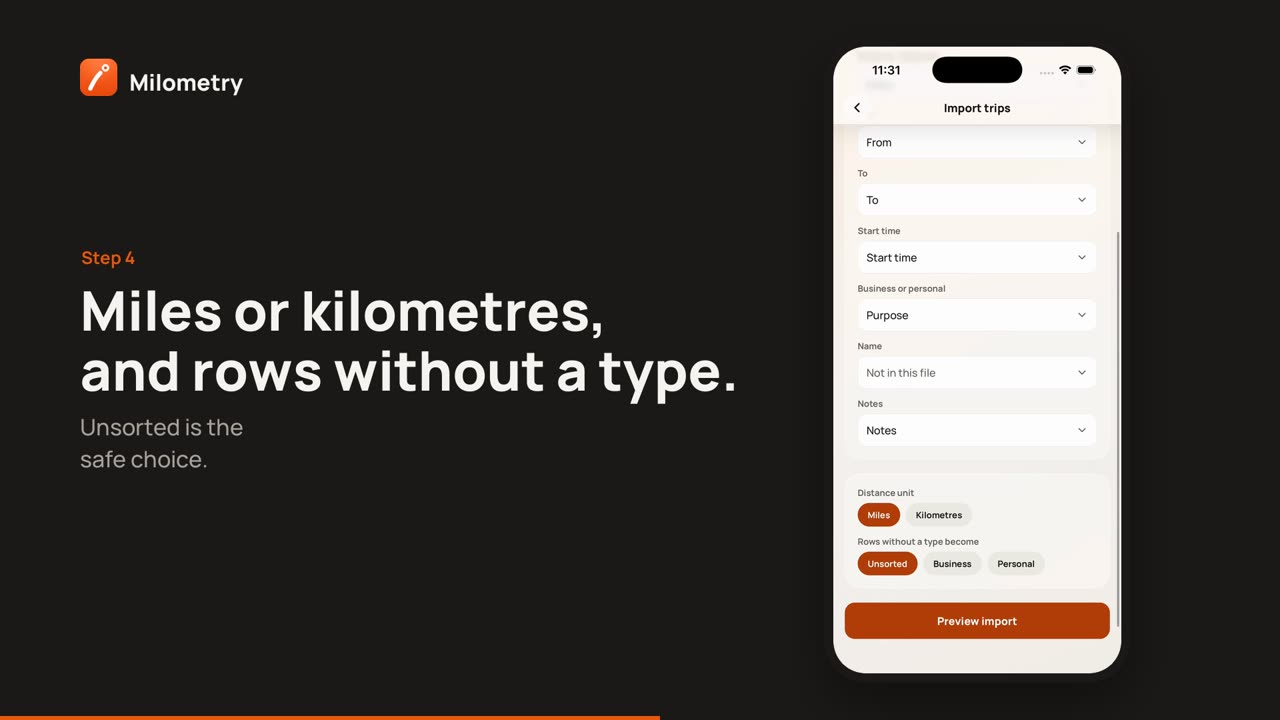
Milometry lists the things it can bring in and guesses which of your columns fits each one. It recognises its own column names in all six of its languages, and the usual names other apps use.
- Check each row. Date and Distance are required. From, To, Start time, Business or personal, Name and Notes are optional.
- Tap a row to pick a different column, or Not in this file if you have nothing for it.
- Under Distance unit, choose Miles or Kilometres, whichever your file uses.
- Under Rows without a type become, choose Unsorted, Business or Personal. Unsorted is the safe choice: the trips wait on the Classify tab for you to sort.
- If you have more than one car, choose one under Assign to vehicle.
- Tap Preview import.
4. Check the preview, then import
The preview shows how many trips are ready, and the first few rows as they will be imported.
- Rows it could not read are counted, with the first reason, and left out. Fix them in the file and import again if they matter.
- Duplicates are counted too. A row is skipped when it matches a trip already in Milometry, or repeats an earlier row of the same file. So importing a file that overlaps with months Milometry was already recording does not count those journeys twice.
Tap Import with the number of trips on it. Import complete says how many were added and how many duplicates were skipped.
How it reads your file
- Business or personal. A value mentioning business or work imports as business. Anything that mentions commuting, "non-business", private or personal imports as personal, because Milometry treats ordinary commuting as private travel and has no separate commute type. Anything else follows your choice in Rows without a type become.
- Numbers. Distances such as 1,234.5, 1.234,5 and 1 234,5 are all read as just over twelve hundred. If a value could honestly be read two ways, such as 1.234 in a file with nothing else to go on, that row is refused with a note asking you to write it without a thousands separator.
- No time? A row with a date and no time is placed at midday, so it lands on the right day.
- No route. Imported trips have their distance and place names, but no map, because the file has no GPS points.
If something is not right
- Every row is unreadable. Check that Date and Distance point at the right columns, and that the file uses commas between columns.
- Distances look wrong. Check the Distance unit, and whether the file writes numbers with a decimal comma.
- Trips came in as business that were not. Open each one from the Trips tab and change it. Nothing in the old file changes.

